

Guide · 18 articles branch off this one
Terraform State & Backends: The Complete Guide
Learn how to set up and customize Terraform backend configs with terraform init. Step-by-step examples for remote state, workspaces, and CI/CD.

Key takeaways
- Terraform state is a JSON file mapping your configuration to real cloud resources; without it, Terraform can create duplicates or destroy infrastructure it shouldn't touch.
- Remote backends (S3, azurerm, GCS) add state locking, versioning, encryption, and shared access that local state files lack.
- Use partial configuration (an empty backend block plus -backend-config files) so the same code can target dev, staging, and prod without hardcoded values.
- terraform init -migrate-state is for moving state to a new backend; -reconfigure is for when only init's cached record of the backend (.terraform/terraform.tfstate) is stale, not the backend itself.
- Many init failures are not backend problems at all. Dependency lock file checksum mismatches, cached .terraform directories, and provider registry outages all surface at init.
- Enable S3 versioning and automated state backups before you need them. Recovery with no preparation takes 1-3 days versus 15-30 minutes with a backup.
Terraform records what it manages in a state file, and the backend block decides where that file lives and how it's locked. Once more than one person runs apply, that means a remote backend (S3, Azure Blob, GCS, or a platform like HCP Terraform or Scalr) with encryption and versioning turned on, configured through an empty backend block plus -backend-config files so one codebase can target dev, staging, and prod. This guide covers setting up each backend, when to use -migrate-state versus -reconfigure, the init failures that turn out not to be backend problems at all, and how to get state back when it's gone.
What is Terraform State?
Terraform state is a JSON file that acts as your infrastructure's "source of truth." It maps your configuration to actual cloud resources and tracks all the metadata, attributes, and dependencies that Terraform needs to manage your infrastructure.
State File Components
The state file contains these elements:
- Metadata: Information about the state format version and the Terraform version that last updated it
- Outputs: Values you've defined as outputs in your configuration, making them accessible to other deployments or external tools
- Resources Array: The complete inventory of all resources Terraform manages, including:
- Resource type and name (e.g.,
aws_instance.web) - Unique cloud provider IDs (e.g.,
i-0abcdef1234567890for an AWS instance) - All resource attributes and their current values
- Dependencies between resources
- Provider information
- Resource type and name (e.g.,
Without a valid state file, Terraform can't tell what it manages, so it can accidentally create duplicate resources or destroy infrastructure it shouldn't touch.
Example State Structure
{
  "version": 4,
  "terraform_version": "1.6.0",
  "serial": 42,
  "resources": [
    {
      "type": "aws_instance",
      "name": "web",
      "instances": [
        {
          "attributes": {
            "id": "i-0abcdef1234567890",
            "ami": "ami-0c55b31ad20f0c502",
            "instance_type": "t2.micro"
          }
        }
      ]
    }
  ]
}
How do you manage Terraform state for a team?
To manage Terraform state across a team, keep it in a remote backend (AWS S3, Azure Blob Storage, GCS, or a platform like HCP Terraform or Scalr) rather than on any one person's machine. A remote backend gives everyone one shared, authoritative state file, automatic locking so two terraform apply runs can't corrupt it, versioning for rollback, encryption at rest, and access controls over who can read or write state.
Object-storage backends (S3, GCS, Azure Blob) cover the essentials once you wire them up. For a team, four capabilities matter most:
- Locking: concurrent applies can't clobber each other's changes
- Role-based access: separate who can read state (it holds secrets) from who can change it
- Versioning and backups: a bad apply rolls back in minutes instead of days
- An audit trail: a record of who changed what, which raw cloud buckets don't keep on their own
S3, GCS, and Azure Blob handle the first three through configuration. The audit trail and fine-grained access control usually come from a management layer on top of the backend, which is what platforms like HCP Terraform and Scalr add. The rest of this guide covers how to set up each backend, lock state safely, and recover it when something goes wrong.
Why Remote Backends Matter
Local state files (the default) cause real problems once you're on a team. Nobody can share the same state, so you get merge conflicts and corruption. The file can hold secrets, so it shouldn't sit in version control unencrypted, and if a laptop dies you've lost track of your infrastructure. There's no locking, so two applies at once can corrupt the file. There's no versioning either, so a bad apply has nothing to roll back to.
A remote backend fixes all of this at once. Everyone reads and writes the same state file, so there's nothing to merge. The backend takes a lock before each write, so two applies can't land on top of each other. Turn on versioning and a bad apply is a restore, not an incident. And because the file sits in a bucket with IAM in front of it and encryption at rest, the secrets inside it stop living on laptops.
Backend Types Overview
Terraform supports a lot of backend types. These are the ones you're most likely to use.
Local Backend
The default backend, storing state on your filesystem.
terraform {
  backend "local" {
    path = "terraform.tfstate"
  }
}
Best For: Individual development, learning, and testing
Limitations: No team collaboration, no state locking, risk of state loss
AWS S3 Backend
The most popular choice for AWS users, storing state in S3 with optional DynamoDB locking.
terraform {
  backend "s3" {
    bucket         = "my-terraform-state"
    key            = "prod/terraform.tfstate"
    region         = "us-east-1"
    encrypt        = true
    use_lockfile   = true
  }
}
Key Parameters:
bucket: The S3 bucket name (must be globally unique)key: The path to the state file within the bucketregion: AWS region where the bucket is locatedencrypt: Enable server-side encryption (recommended)use_lockfile: Use S3 native locking (recommended over DynamoDB)dynamodb_table: Alternative locking using DynamoDB
Authentication Methods:
- Environment variables:
AWS_ACCESS_KEY_ID,AWS_SECRET_ACCESS_KEY - AWS CLI credentials:
aws configure - IAM roles: For EC2 instances, Lambda, or other AWS services
- Assume role: For cross-account access
See Also: Using the AWS S3 Backend Block in Terraform
Azure Storage (azurerm) Backend
Store state in Azure Blob Storage with native blob lease locking.
terraform {
  backend "azurerm" {
    resource_group_name  = "terraform-state-rg"
    storage_account_name = "terraformstate"
    container_name       = "tfstate"
    key                  = "prod.tfstate"
    use_oidc             = true
    use_azuread_auth     = true
  }
}
Key Parameters:
resource_group_name: Azure resource group containing the storage accountstorage_account_name: Name of the storage accountcontainer_name: Blob container namekey: The blob name for the state fileuse_oidc: Enable OpenID Connect authentication (recommended)
Authentication Methods:
- Azure CLI:
az login - Environment variables:
ARM_CLIENT_ID,ARM_CLIENT_SECRET,ARM_TENANT_ID - Managed Identity: For resources in Azure
- Service Principal: For CI/CD systems
See Also: Using the azurerm Backend Block in Terraform
Google Cloud Storage (GCS) Backend
Store state in Google Cloud Storage with native state locking.
terraform {
  backend "gcs" {
    bucket = "tf-state-prod"
    prefix = "terraform/state"
  }
}
Key Parameters:
bucket: GCS bucket nameprefix: Path within the bucket to store state
Authentication Methods:
- gcloud CLI:
gcloud auth application-default login - Service accounts: For automated deployments
- Workload Identity: For GKE clusters
See Also: Using the GCS Backend Block in Terraform
Other Cloud Providers
Terraform Cloud/Enterprise (Remote Backend):
terraform {
  cloud {
    organization = "my-organization"
    workspaces {
      name = "my-workspace"
    }
  }
}
Provides managed state storage, policy enforcement, and remote runs.
Oracle Cloud Infrastructure (S3-compatible): Uses the S3 backend with a custom endpoint configured for OCI's object storage.
Alibaba Cloud (oss) and Tencent Cloud (cos) have their own backend types with the same bucket/key/region shape.
Specialized Backends
HTTP Backend: For custom state management systems or enterprise APIs
Consul Backend: For teams using HashiCorp Consul for service discovery
PostgreSQL Backend: For database-centric organizations
Kubernetes Backend: Store state in Kubernetes secrets with Lease-based locking
Backend Configuration Methods
Direct Configuration (Not Recommended for Production)
Hardcoding backend settings in your code limits flexibility and can leak sensitive information:
terraform {
  backend "s3" {
    bucket = "my-bucket"
    key    = "prod/terraform.tfstate"
    region = "us-east-1"
  }
}
Partial Configuration with Files
Recommended approach: Define the backend type but leave environment-specific details for initialization:
main.tf:
terraform {
  backend "s3" {}
}prod.tfbackend:
bucket = "my-prod-bucket"
key    = "prod/terraform.tfstate"
region = "us-east-1"
encrypt = true
use_lockfile = trueInitialization:
terraform init -backend-config=prod.tfbackendUsing Command-Line Flags
Pass backend configuration directly during initialization:
terraform init \
  -backend-config="bucket=my-bucket" \
  -backend-config="key=prod/terraform.tfstate" \
  -backend-config="region=us-east-1"
The -backend-config Option in depth
The -backend-config option allows flexible backend configuration without modifying your code:
# Using a configuration file
terraform init -backend-config=envs/prod.conf

# Using individual key-value pairs
terraform init \
  -backend-config="bucket=my-terraform-state" \
  -backend-config="key=prod/terraform.tfstate" \
  -backend-config="region=us-west-2"

# Combining multiple methods
terraform init \
  -backend-config=base.conf \
  -backend-config="bucket=override-bucket"
Security Considerations for -backend-config:
| Scenario | Risk | Mitigation |
|---|---|---|
| Secrets in .tfbackend files | Exposed if committed to Git | Use .gitignore, dynamic generation, or environment variables |
| Secrets in CLI history | Shell history can be accessed | Use configuration files or environment variables instead |
| Secrets in plan files | .tfplan files may contain sensitive data | Avoid passing secrets to backend config; use environment variables |
| Secrets in .terraform directory | Local caching of backend config | Keep .terraform in .gitignore |
Best Practices:
- Use environment variables for all credentials
- Keep non-sensitive parameters in versioned config files
- Never commit files containing secrets
- Use temporary, ephemeral configuration files for sensitive data
- In CI/CD, inject configuration via environment variables or secrets managers
Terraform vs. OpenTofu: Dynamic Backends
OpenTofu (fork of Terraform) added support for dynamic backend blocks starting with version 1.8, allowing variables in backend configuration:
variable "env" {
  type    = string
  default = "dev"
}

terraform {
  backend "s3" {
    bucket = "my-state-${var.env}"
    key    = "terraform.tfstate"
    region = "us-east-1"
  }
}
See Also: Dynamic Backend Blocks with OpenTofu
This provides more flexibility for multi-environment setups without requiring workarounds like -backend-config.
One migration gotcha shows up at init time. A team switching a workspace from Terraform to OpenTofu had a community provider available only on the Terraform registry, and tried to pin it by hardcoding the full registry.terraform.io/<namespace>/<name> source address. OpenTofu failed init anyway with provider registry registry.opentofu.org does not have a provider named .... It normalizes the default registry hostname to its own, and hardcoding registry.terraform.io in the source address doesn't override that. Getting a Terraform-registry-only provider into an OpenTofu run requires a provider mirror or an explicit provider_installation block in the CLI configuration, not a source-string edit.
State Locking & Concurrency
State locking stops concurrent operations from corrupting your state file.
How State Locking Works
When Terraform performs a write operation (plan or apply), it attempts to acquire a lock. This lock signals that the state is in use. If successful, the operation proceeds; if another user holds the lock, Terraform waits and eventually fails. Once the operation completes, the lock is automatically released.
A lock wait is easy to confuse with a queue wait when you're using a remote backend like HCP Terraform or Scalr. If the CLI prints Waiting for 1 run(s) to finish before being queued, that isn't a lock at all. Your run is behind another run in the same workspace. Why Terraform run concurrency matters breaks down that message, the separate organization-level concurrency message, and what clears each one.
Locking by Backend
| Backend | Locking Mechanism | Behavior on Crash |
|---|---|---|
| Local | File system lock | Lock remains until manually released |
| S3 | DynamoDB or native locking | Lock eventually expires or is manually released |
| Azure | Blob lease | Lease expires after 60 seconds |
| GCS | Object generation numbers | Lock automatically released |
| Terraform Cloud | Session-based | Managed automatically |
| Kubernetes | Lease resources | Lease expires automatically |
| PostgreSQL | Advisory locks | Released on connection close |
Handling Lock Errors
See Also: Terraform State Lock Errors: Emergency Solutions & Prevention Guide
Common commands:
# Check if a lock is held
terraform plan -lock-timeout=5s

# Force unlock a stuck lock (use with caution)
terraform force-unlock LOCK_ID

# Set a custom timeout while waiting for locks
terraform apply -lock-timeout=10m
Preventing Concurrent Execution
In CI/CD pipelines, use concurrency controls:
GitHub Actions:
concurrency:
  group: terraform-${{ github.workflow }}-${{ github.ref }}
  cancel-in-progress: false
GitLab CI:
terraform_apply:
  resource_group: ${CI_ENVIRONMENT_NAME}_terraform
What's Different About Securing State
State holds secrets: database passwords, generated keys, anything a provider returned. So treat the backend like a secrets store, not a bucket of JSON. Encrypt at rest (encrypt = true plus a KMS key on S3; Cloud KMS on GCS; Azure storage encryption is on by default), keep dev, staging, and prod in separate state files with separate credentials, give automation its own least-privilege identity, and restrict who can read state as tightly as who can write it. Never commit a state file, and never hardcode the backend's credentials; use environment variables, a managed identity, or an assumed role.
Sharing State Between Deployments
Understanding State Dependencies
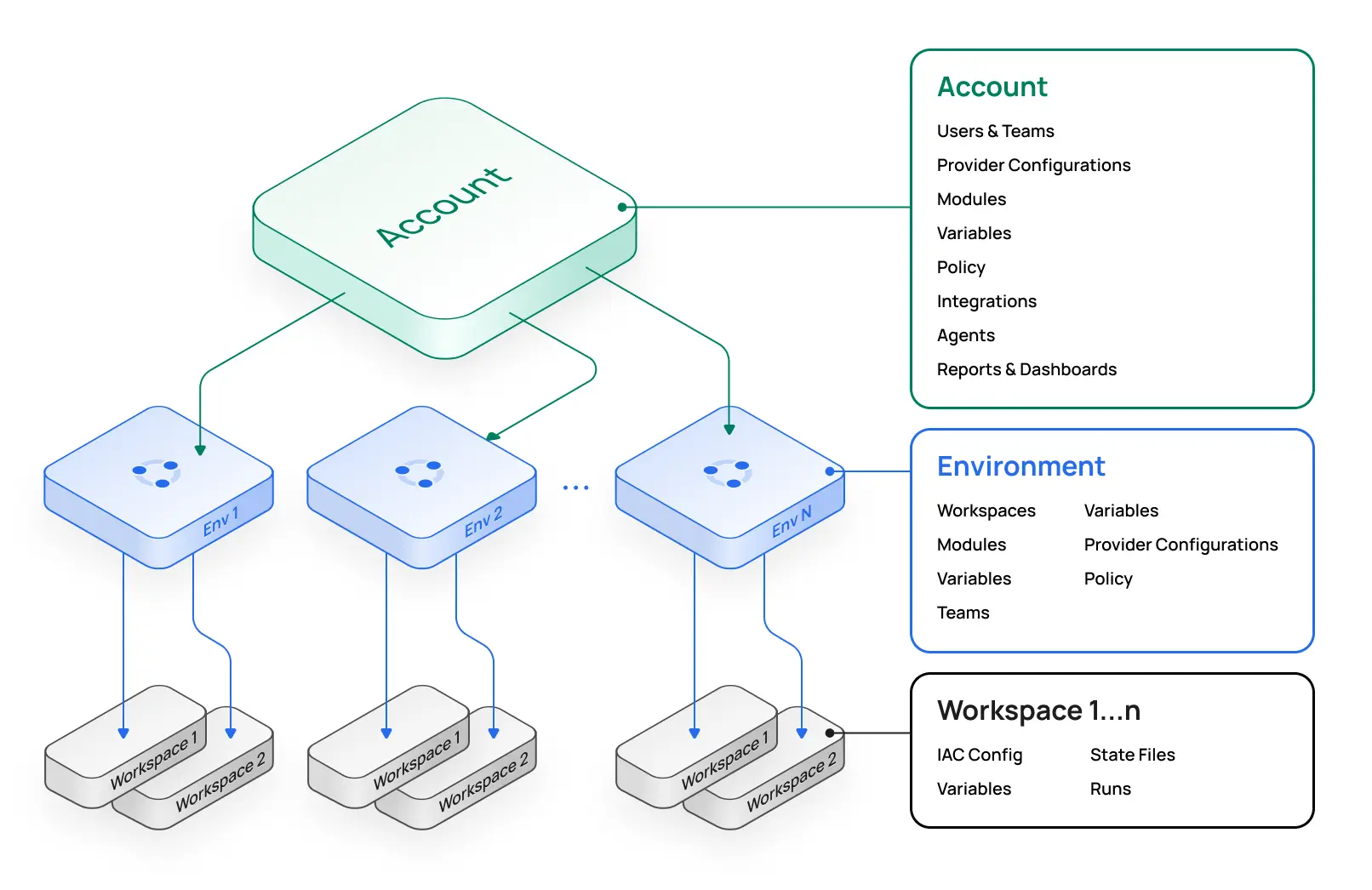
In real-world deployments, infrastructure components often depend on each other:
Network Team (VPC, Subnets)
    ↓ (provides VPC ID, subnet IDs)
Application Team (EC2, Load Balancer)
    ↓ (provides DB endpoint)
Database Team (RDS)
Using terraform_remote_state
The terraform_remote_state data source allows one configuration to read outputs from another:
data "terraform_remote_state" "network" {
  backend = "s3"
  config = {
    bucket = "my-terraform-state-bucket"
    key    = "network/terraform.tfstate"
    region = "us-east-1"
  }
}

resource "aws_instance" "app" {
  subnet_id = data.terraform_remote_state.network.outputs.private_subnet_id
}
Each team keeps its own state file and exports the values other teams need as outputs; consumers get read-only access. The patterns are in How to Share Terraform State.
Automating Dependencies
Use CI/CD orchestration to automate dependent deployments:
# When network deployment succeeds, automatically trigger app deployment
- name: Trigger App Servers Deployment
  if: success()
  uses: peter-evans/repository-dispatch@v3
  with:
    repository: your-org/app-servers
    event-type: deploy-app-servers
Managing State with Remote Backends
Common State Operations
# List all resources in state
terraform state list

# Show details of a specific resource
terraform state show aws_instance.web

# Move a resource (useful for refactoring)
terraform state mv aws_instance.old aws_instance.new

# Remove a resource from state (without destroying it)
terraform state rm aws_instance.web

# Import an existing resource into state
terraform import aws_instance.example i-abcd1234

# Pull state locally for inspection
terraform state pull > state.json

# Push modified state back to remote backend
terraform state push state.json

# Refresh state without making changes
terraform apply -refresh-only
State Migration: -migrate-state vs. -reconfigure
Migrating between backends:
# Update your backend configuration, then:
terraform init -migrate-state

# Terraform will prompt to confirm the migration
-migrate-state is the right flag when the backend actually moved (a new bucket, a new key, a different backend type) and you want Terraform to copy the existing state to the new location.
There's a second flag, -reconfigure, and knowing which one to reach for comes down to a detail most teams only learn the hard way. Init keeps its own local record of which backend it last initialized against, in .terraform/terraform.tfstate. That file is bookkeeping, not your actual infrastructure state. When the cached record disagrees with the backend block in your code, init refuses to proceed with:
Error: Backend configuration changed

A change in the backend configuration has been detected, which may
require migrating existing state.
A platform team we worked with at Scalr hit this on every single CLI-driven run the day they moved their pipeline from VM-based agents to a serverless runner pool. Nothing in any backend block had changed. They diffed the HCL to be sure. What changed was the execution environment: the cached .terraform/terraform.tfstate the runners carried no longer matched what init expected to find. The backend hadn't moved; only init's memory of it had gone stale.
This is exactly the case where -reconfigure is correct and -migrate-state would be wrong:
terraform init -reconfigure-reconfigure tells Terraform to discard its cached record and initialize fresh against the backend block as written, without attempting to move any state. -migrate-state in the same situation would have tried to migrate from a "previous" backend that never existed as a real destination. The rule of thumb: if the state's location changed, use -migrate-state; if only init's record of it is stale (new runners, deleted working directories, copied checkouts), use -reconfigure.
Workspace Management
Workspaces provide lightweight environment separation within the same backend:
# Create new workspace
terraform workspace new dev

# List workspaces
terraform workspace list

# Switch workspace
terraform workspace select prod

# Delete workspace
terraform workspace delete dev
When using workspaces with remote backends, Terraform automatically manages separate state files with workspace-aware keys.
Why Does terraform init Fail When the Backend Didn't Change?
Init does far more than configure the backend: it installs providers, verifies them against .terraform.lock.hcl, downloads modules, and contacts registries and mirrors. In Scalr's support queue, most "backend" init failures turn out to live in one of these other phases. Four patterns come up repeatedly.
Lock file checksums recorded for the wrong platform
A team committed a .terraform.lock.hcl generated on developer laptops (Apple Silicon). Their Linux CI runners then rejected the exact same provider version at init:
the local package for registry.opentofu.org/hashicorp/tls 4.2.1 doesn't
match any of the checksums previously recorded in the dependency lock
file (...checksums are for packages targeting different platforms)
Same provider, same version, but the lock file only contained darwin_arm64 checksums, and the runner needed linux_amd64. The fix is to record checksums for every platform that will run init, before committing the lock file:
terraform providers lock -platform=linux_amd64 -platform=darwin_arm64Version constraints you can't grep for
A customer running a monorepo (shared working directory, module pulled in via relative path) bumped the module's AWS provider constraint in a PR, then fully reverted it and rebased clean. Init kept failing anyway:
locked provider registry.opentofu.org/hashicorp/aws 5.39.1 does not match
configured version constraint ~> 5.0, >= 5.20.1, >= 5.81.0; must use
tofu init -upgrade
The odd part was that >= 5.81.0 appeared nowhere in their configuration and nowhere in the lock file. They grepped the entire repo. The constraint lived in the remote runner's cached .terraform directory, written during an init of the now-reverted branch and never invalidated. When init cites a constraint you can't find in your code, suspect cached init data: clear the .terraform directory on the runner, or stop sharing working directories between runs.
Registry and mirror outages surface at init first
A team's production pipeline went red overnight with zero code changes:
Could not resolve provider okta/okta: ... Get
"https://registry.opentofu.org/.well-known/terraform.json":
context deadline exceeded
The failure passed through their network-mirror path before falling back upstream, and the upstream registry was the thing that was down. Init has more external network dependencies than any other Terraform command: provider registries, network mirrors, module sources. So upstream outages tend to show up as init failures before they show up anywhere else. Provider caching and registry mirrors absorb most of this class of failure; if your pipeline can't tolerate a registry outage, that's the investment to make.
A clean init proves nothing about plan
A team integrating a developer-portal provider through a cloud {} block found that the provider's local name in required_providers changed which command failed. With the local name port-labs, Terraform's resource-prefix inference saw resources named port_blueprint and went hunting for a nonexistent hashicorp/port, so init died with Failed to query available provider packages. Renaming the local name to port made init succeed, and then the remote plan failed instead:
Error: Inconsistent dependency lock file

provider ...hashicorp/port-labs: required by this configuration but
no version is selected
The workaround that held up was declaring both local names pointing at the same provider source. The broader lesson applies to any pipeline: a green init verifies provider installation and backend reachability, nothing more. Don't treat it as proof the plan will run.
While not strictly an init problem, module download failures land in the same place: one team's runs failed with [email protected]: Permission denied (publickey) and Identity file ../../../../.ssh/ed25519 not accessible, an SSH key injected somewhere git wasn't looking. If init fails after the backend phase succeeds, check module sources and their credentials before touching the backend block.
Recovery & Disaster Planning
When state is lost or corrupted, recovery time depends on how prepared you were:
| Scenario | Recovery Time | Preparation Required |
|---|---|---|
| Local backup available | 15-30 minutes | Regular backups |
| S3 versioning enabled | 30-60 minutes | Enable versioning upfront |
| Manual resource imports | 4-8 hours | Automation knowledge |
| No preparation | 1-3 days | Major incident |
See Also: Empty Terraform State File Recovery
Immediate Response
If state is corrupted or lost:
# 1. Verify state is actually empty
terraform state list

# 2. Check for local backup
ls -la terraform.tfstate.backup

# 3. For remote backends, pull current state
terraform state pull > current_state.json

# 4. If backup exists, restore immediately
cp terraform.tfstate.backup terraform.tfstate

# 5. CRITICAL: Do NOT run terraform apply with empty state
# This would attempt to recreate all resources
S3 Versioning Recovery
If using S3 with versioning enabled:
# List available versions
aws s3api list-object-versions \
  --bucket MY-BUCKET \
  --prefix path/to/terraform.tfstate

# Download a specific version
aws s3api get-object \
  --bucket MY-BUCKET \
  --key path/to/terraform.tfstate \
  --version-id VERSION-ID \
  terraform.tfstate.restore

# Verify resource count before restoring
jq '.resources | length' terraform.tfstate.restore

# Restore the version
aws s3 cp terraform.tfstate.restore s3://MY-BUCKET/path/to/terraform.tfstate
Bulk Resource Imports
When state recovery isn't possible, bulk importing tools can reconstruct state:
Terraformer (multi-cloud):
# Import all AWS resources
terraformer import aws --resources="*" --regions=us-east-1

# Filter by tags
terraformer import aws \
  --resources=ec2_instance \
  --filter="Name=tags.Environment;Value=Production"
Terraform 1.5+ Import Blocks (native):
import {
  for_each = var.instance_ids
  to       = aws_instance.imported[each.key]
  id       = each.value
}
Disaster Prevention
GitHub Actions State Protection:
- name: Pre-Apply Backup
  run: |
    TIMESTAMP=$(date +%Y%m%d-%H%M%S)
    terraform state pull > "backups/pre-apply-${TIMESTAMP}.json"
    aws s3 cp "backups/pre-apply-${TIMESTAMP}.json" \
      s3://terraform-backups/${GITHUB_REPOSITORY}/

- name: Terraform Apply with Rollback
  run: |
    if ! terraform apply -auto-approve; then
      echo "Apply failed, initiating rollback"
      terraform state push backups/pre-apply-*.json
      exit 1
    fi
S3 Lifecycle Configuration:
{
  "Rules": [{
    "Id": "StateFileRetention",
    "Status": "Enabled",
    "NoncurrentVersionTransitions": [
      {
        "NoncurrentDays": 30,
        "StorageClass": "STANDARD_IA"
      }
    ],
    "NoncurrentVersionExpiration": {
      "NoncurrentDays": 365
    }
  }]
}
Enterprise Solutions
Scalr Platform
If you're managing infrastructure at scale, a platform gives you more than basic state management. (For a side-by-side look at the platforms in this category, see our comparison of Terraform Cloud alternatives. If you're moving state the other way, out of a managed platform, exporting state from Terraform Cloud covers the CLI, API, and UI routes and why init -migrate-state doesn't work outbound.)
Key Features:
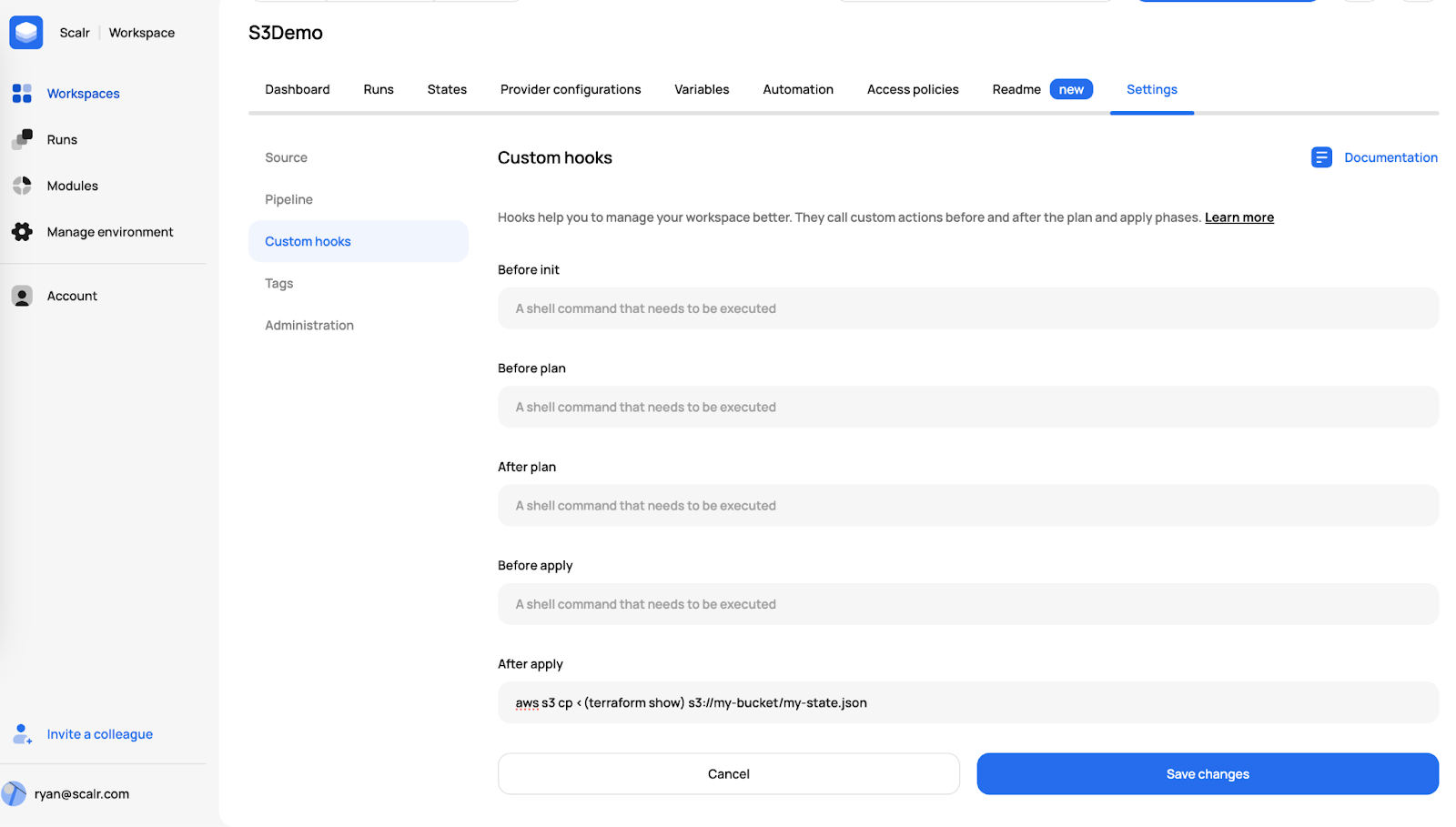
- Managed State Storage: AES-256 encrypted state with automatic versioning
- Automatic Locking: Built-in state locking with no manual configuration
- Storage Flexibility: Use Scalr-managed storage on any tier, or customer-owned buckets (S3, Azure, GCS) on the Enterprise tier
- State Commands: Full support for
terraform statecommands via CLI - Policy Enforcement: Policy as Code (OPA) integration for governance
- RBAC: Fine-grained access control beyond cloud provider IAM
- Audit Logs (Enterprise tier): Stream user and system activity to Datadog, EventBridge, or your own bucket
- Drift Detection: Automatic detection of state divergence from reality
- Approval Workflows: Prevent accidental state modifications with mandatory approvals
- Pricing: Billed per run, with no charges for users, workspaces, or resources under management
Example Scalr Backend Configuration:
terraform {
  backend "remote" {
    hostname     = "my-account.scalr.io"
    organization = "my-environment-id"
    workspaces {
      name = "my-workspace"
    }
  }
}
Where to start
If you're running anything past a solo project, move to a remote backend before you hit a state conflict, not after. Turn on encryption and versioning when you create the bucket, lock down who can read and write the state, and keep dev, staging, and prod in separate state files.
Most of the init failures in this guide weren't backend problems. They were stale .terraform caches, lock files recorded for the wrong platform, and registry outages that happened to surface at init. When you hit one, check those before you start editing the backend block.
Whether you manage backends by hand or hand state off to a platform like Scalr, set up versioning and a record of who changed what before you need them. The first lost state file is the wrong time to find out you don't have either.
Frequently asked questions
What is a Terraform backend?
A backend defines where Terraform stores its state file and how it acquires locks. The default local backend writes terraform.tfstate to disk; remote backends like S3, Azure Blob Storage, and GCS centralize state so teams can collaborate with locking, versioning, and encryption.
Should I use terraform init -migrate-state or -reconfigure?
Use -migrate-state when the backend itself changed (new bucket, new key, different backend type) and you want Terraform to copy state to the new location. Use -reconfigure when the backend didn't move but init's cached record of it no longer matches (for example after switching execution environments) so Terraform discards its memory of the backend without touching state.
Why does terraform init say "Backend configuration changed" when nothing changed?
Init keeps its own local bookkeeping file at .terraform/terraform.tfstate recording which backend it last initialized against. If that cached record disagrees with your backend block (common after moving runs to a new execution environment) init refuses to proceed even though no code changed. Running terraform init -reconfigure resolves it.
Why does terraform init fail with a lock file checksum error in CI but work on my laptop?
A .terraform.lock.hcl generated on one platform (such as an Apple Silicon laptop) records checksums only for that platform's provider packages. Linux CI runners then reject the same provider version. Fix it by running terraform providers lock -platform=linux_amd64 -platform=darwin_arm64 before committing the lock file.
How do I recover a lost or corrupted Terraform state file?
First check for a local terraform.tfstate.backup, then pull the current remote state for inspection. If S3 versioning is enabled, list object versions and restore a prior one. As a last resort, rebuild state with bulk import tools like Terraformer or Terraform 1.5+ import blocks. Never run terraform apply against an empty state.
Can I use variables in a Terraform backend block?
Not in Terraform. Backend blocks cannot reference variables, which is why partial configuration with -backend-config exists. OpenTofu added dynamic backend blocks in version 1.8, allowing variables like bucket = "my-state-${var.env}" directly in the backend configuration.
How do you manage Terraform state for a team?
Store state in a remote backend (AWS S3, Azure Blob Storage, GCS, or a platform like HCP Terraform or Scalr) instead of on a laptop, so every team member shares one authoritative state file. A team setup needs four things beyond storage: state locking so concurrent applies can't corrupt state, role-based access control over who can read state (it holds secrets) versus write it, versioning and backups for fast rollback, and an audit trail of who changed what. Object-storage backends cover locking, versioning, and encryption once configured; fine-grained access control and audit trails typically come from a management platform layered on top.
About the author

CEO at Scalr
Sebastian Stadil is the CEO of Scalr with 15+ years of DevOps experience. He started with AWS in 2004 and advised early Microsoft Azure and Google Cloud.
In this guide
18 articles- How to Update State in a Remote Backend
- HashiCorp GPG Key Expired: Fixing Terraform Download Errors
- Terraform State Files Best Practices
- Using the AWS S3 Backend Block in Terraform
- Using the AzureRM Backend Block in Terraform
- Using the GCS Backend Block in Terraform
- Dynamic Backend Blocks with OpenTofu
- How to Share Terraform State
- Scalr Terraform State Management: Features and Functionality
- A beginner's guide to the terraform init command
- Understanding OpenTofu Remote Backends
- Updating Terraform State, with Great Power comes Great Responsibility
- Why Use A Remote Operations Backend Over A Standard Backend
- How To Use Terraform Remote Backends
- Get Started With Scalr & Terraform CLI on AWS
- Get Started With Scalr & Terraform CLI on Azure
- Get Started With Scalr & Terraform CLI on GCP
- How To: Migrate Terraform State Into Scalr