

Article · part of a guide
Get Started With Scalr & Terraform CLI on Azure
The basics of using Scalr for Terraform with Microsoft Azure, from linking service principal credentials to deploying a VM.

Key takeaways
- This tutorial walks through deploying an Azure virtual machine using Scalr as a remote backend for the Terraform CLI.
- You connect Azure by creating a provider configuration in Scalr with service principal credentials (Client ID, Client Secret, Tenant ID, Subscription ID), or alternatively OIDC workload identity.
- The Scalr API token goes in your Terraform CLI configuration file (~/.terraformrc on Unix), and the environment name is used as the organization value in the remote backend block.
- Scalr can deploy any resource Terraform supports and also works via VCS integration, the Scalr API, and the Scalr UI.
This tutorial walks you through the basics of using Scalr as a remote backend for Terraform. Scalr is a Terraform collaboration tool that gives you a centralized runtime environment, state file storage and locking, policy enforcement with the Open Policy Agent, and role-based access controls.
In a couple of minutes you'll have deployed a virtual machine using Terraform and Scalr. We use a virtual machine as the example here, but Scalr can deploy any resource that Terraform can.
What Do You Need Before You Start?
How Do You Link Your Azure Service Principal Credentials to Scalr?
First you need to give Scalr access to your Azure account. The easiest way is to create a service principal to provision infrastructure with. If you don't know how to do that, click here. You can also use whatever process you already have set up for Terraform: Hashicorp Vault, environment variables, …
From the Scalr UI, navigate to the account-level view (see the Scalr documentation for the current navigation).
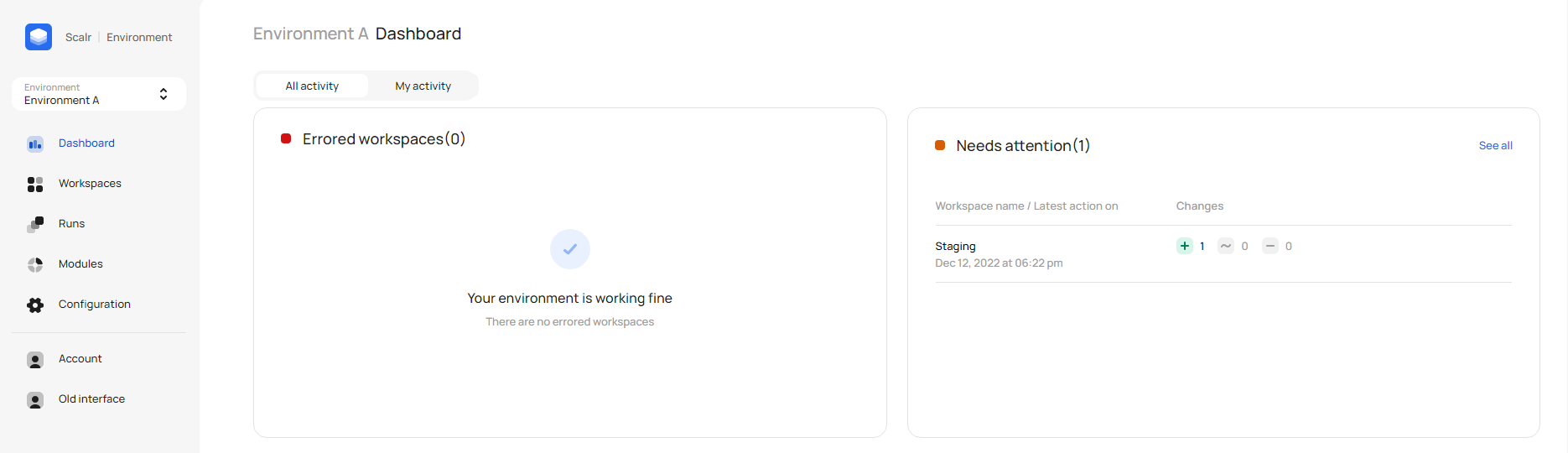
Note: The account level is where you do admin tasks - adding cloud credentials, connecting vcs providers, managing users and teams, … The environment level is where you manage workspaces. You can read more on this here.
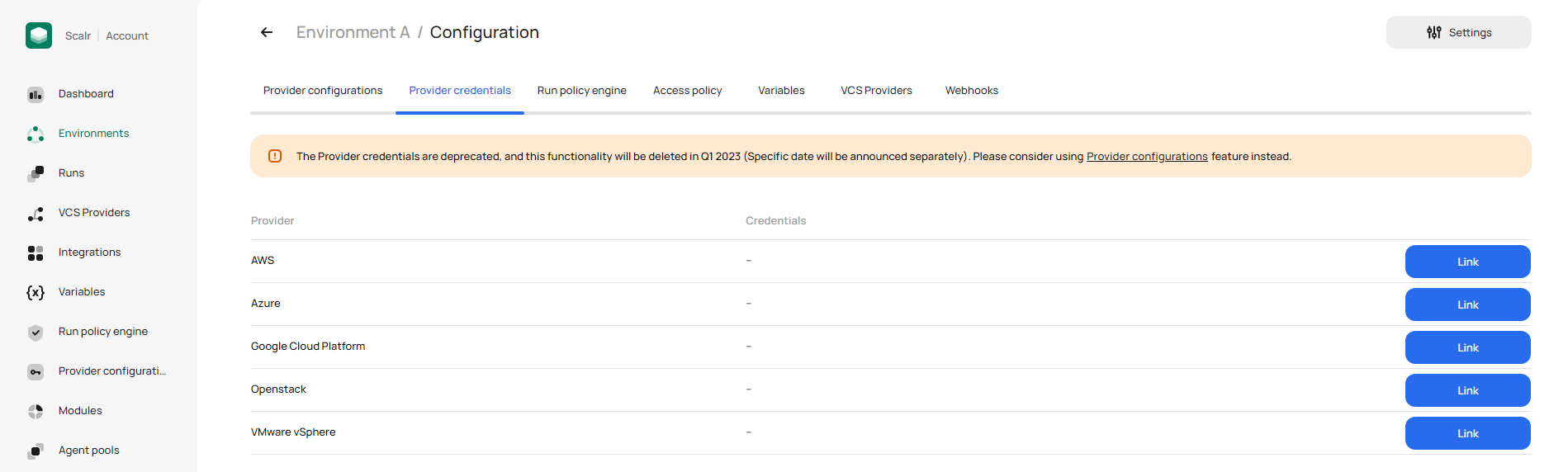
Click on Provider Configurations from the account dashboard. Click on Create Configuration and select Azure. Enter a name and then provide your service principal credentials: Client ID, Client Secret, Tenant ID, and Subscription ID. (As an alternative to a long-lived client secret, you can configure OIDC workload identity so Scalr authenticates to Azure with short-lived federated tokens.) Click save.
Where Do You Get Your Scalr API Token?
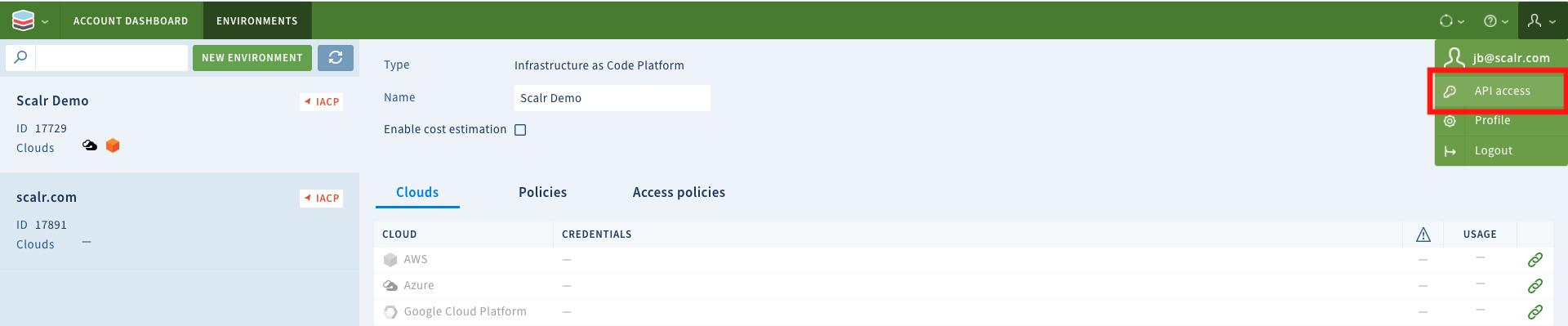
Open your user profile in the Scalr UI, find the API access / tokens section, generate an API token, and save it somewhere safe (see the Scalr documentation for the current navigation).
How Do You Find Your Environment Name in Scalr?
Go back to the environment scope and copy your environment name from the Scalr UI. You'll use this as the organization value in the Terraform remote backend block (Scalr's hierarchy is Account → Environment → Workspace; the Terraform organization field carries the environment name).
Run the Get Started Script or use your own Terraform files
For this step you can use your own Terraform code, or the starter main.tf file we've built for this tutorial.
If you have a UNIX-based computer and want to use our starter code, open your terminal and run the following script:
bash <(curl https://raw.githubusercontent.com/jeanbaptistebeck/scalr-get-started-azure/main/scalr-get-started-azure.sh)It asks for the Scalr account name you chose when creating your account, the Scalr token you retrieved earlier and a workspace name of your choice. The script creates a main.tf file that deploys a virtual machine. It also appends your Scalr token to your ~/.terraformrc file so that the Terraform CLI can talk to your Scalr account.
If you're using your own Terraform files, append the Scalr token to the CLI configuration file.
- Windows: terraform.rc in %APPDATA% directory
- Unix/Linux/Mac : ~/.terraformrc
credentials "my-account.scalr.io" {
  token = "<user-token>"
}
How Do You Provision the Virtual Machine?
Run terraform apply to provision the instance. Check the run in the Scalr UI, then confirm in your Azure console that the instance has been deployed.
How Do You Destroy the Virtual Machine When You're Done?
Run terraform destroy from the terminal to remove the instance we just launched.
What Other Ways Can You Deploy With Scalr?
You've now deployed an instance on Azure using Scalr and the Terraform CLI. You can also provision resources through VCS integration (GitHub, Gitlab, Bitbucket), the Scalr API and the Scalr UI.
From here, invite your teammates and connect a VCS provider.
Using another cloud provider? Check out Get Started With Scalr on AWS or Get Started With Scalr on GCP.
Frequently asked questions
How do I connect Azure credentials to Scalr for Terraform?
Create a service principal in Azure, then in the Scalr UI go to the account-level view, open Provider Configurations, and create an Azure configuration with the Client ID, Client Secret, Tenant ID, and Subscription ID. As an alternative to a long-lived client secret, you can configure OIDC workload identity so Scalr authenticates with short-lived federated tokens.
What do I need before using Scalr as a Terraform backend on Azure?
You need Terraform 0.12.1 or newer, a Scalr account, and a Microsoft Azure account. The setup is: link service principal credentials to Scalr, generate a Scalr API token for the Terraform CLI, and use your Scalr environment name in the remote backend block.
Where do I put my Scalr API token for the Terraform CLI?
Generate a token from your user profile in the Scalr UI, then add it to the Terraform CLI configuration file: ~/.terraformrc on Unix, Linux, and Mac, or terraform.rc in the %APPDATA% directory on Windows. The file needs a credentials block for your account's scalr.io hostname containing the token.
Can Scalr deploy more than virtual machines on Azure?
Yes. The tutorial uses an Azure virtual machine as the example, but Scalr can deploy any resource Terraform supports. Besides the Terraform CLI, you can also provision resources through VCS integration with GitHub, GitLab, or Bitbucket, the Scalr API, or the Scalr UI.
About the author

director of platform engineering at Scalr
Ryan Fee is the director of platform engineering at Scalr, with over 15 years of experience improving infrastructure experiences at companies large and small.
Part of this guide
19 sheets
Terraform State & Backends: The Complete Guide
- How to Update State in a Remote Backend
- HashiCorp GPG Key Expired: Fixing Terraform Download Errors
- Terraform State Files Best Practices
- Using the AWS S3 Backend Block in Terraform
- Using the AzureRM Backend Block in Terraform
- Using the GCS Backend Block in Terraform
- Dynamic Backend Blocks with OpenTofu
- How to Share Terraform State
- Scalr Terraform State Management: Features and Functionality
- A beginner's guide to the terraform init command
- Understanding OpenTofu Remote Backends
- Updating Terraform State, with Great Power comes Great Responsibility
- Why Use A Remote Operations Backend Over A Standard Backend
- How To Use Terraform Remote Backends
- Get Started With Scalr & Terraform CLI on AWS
- Get Started With Scalr & Terraform CLI on GCP
- How To: Migrate Terraform State Into Scalr