

Article · part of a guide
How To: Migrate Terraform State Into Scalr
How to move Terraform state from local files, S3, or another remote backend into Scalr with terraform init.

Plenty of teams run Terraform for IaC deployments. People like the flexibility, but once they scale up, problems start to show.
For a DevOps administrator, the usual sticking point is central state storage. By the time you're scaling Terraform, you probably already have several state files sitting locally, in an S3 bucket, or in a remote operations backend. At some point the management, operational, and cost overhead pushes you toward better tooling.
Scalr handles the collaborative side of Terraform: state management, auditing, policy enforcement, and GitOps automation. Moving your state into it can sound like a chore, but the migration is straightforward.
If you're coming from Terraform Cloud, start by getting your state out of it. How to export state from Terraform Cloud explains how, using the CLI, the API, or the UI. The steps below then bring that state into Scalr.
How do I migrate state into Scalr?
You migrate state by configuring your template to use Scalr as a remote backend. Wherever your state lives now (local, an S3 bucket, and so on), the Terraform CLI picks up the configuration change on terraform init and migrates the state to Scalr for you.
- If you're already using a remote backend, update the terraform{} block to look like the example below.
- If you're migrating local state, add a complete terraform{} block like this example.
terraform {
  backend "remote" {
    hostname = "my-account.scalr.io"
    organization = "my-environment" # the environment name from your Scalr account
    workspaces {
      name = "migrate_demo"
    }
  }
}
Run terraform init to migrate the state and answer "yes" to the prompt. This creates the workspace and uploads the state to Scalr.
terraform init
Initializing the backend...
Backend configuration changed!
Terraform has detected that the configuration specified for the backend
has changed. Terraform will now check for existing state in the backends.
Terraform detected that the backend type changed from "s3" to "remote".
Do you want to copy existing state to the new backend?
Pre-existing state was found while migrating the previous "s3" backend to the newly configured "remote" backend. No existing state was found in the newly configured "remote" backend. Do you want to copy this state to the new "remote" backend? Enter "yes" to copy and "no" to start with an empty state.
Enter a value: yes
Successfully configured the backend "remote"! Terraform will automatically use this backend unless the backend configuration changes.
Initializing provider plugins...
The following providers do not have any version constraints in configuration, so the latest version was installed.
To prevent automatic upgrades to new major versions that may contain breaking changes, it is recommended to add version = "..." constraints to the corresponding provider blocks in configuration, with the constraint strings suggested below.
* provider.aws: version = "~> 2.70"
Terraform has been successfully initialized!
You may now begin working with Terraform. Try running "terraform plan" to see any changes that are required for your infrastructure. All Terraform commands should now work.
If you ever set or change modules or backend configuration for Terraform, rerun this command to reinitialize your working directory. If you forget, other commands will detect it and remind you to do so if necessary.
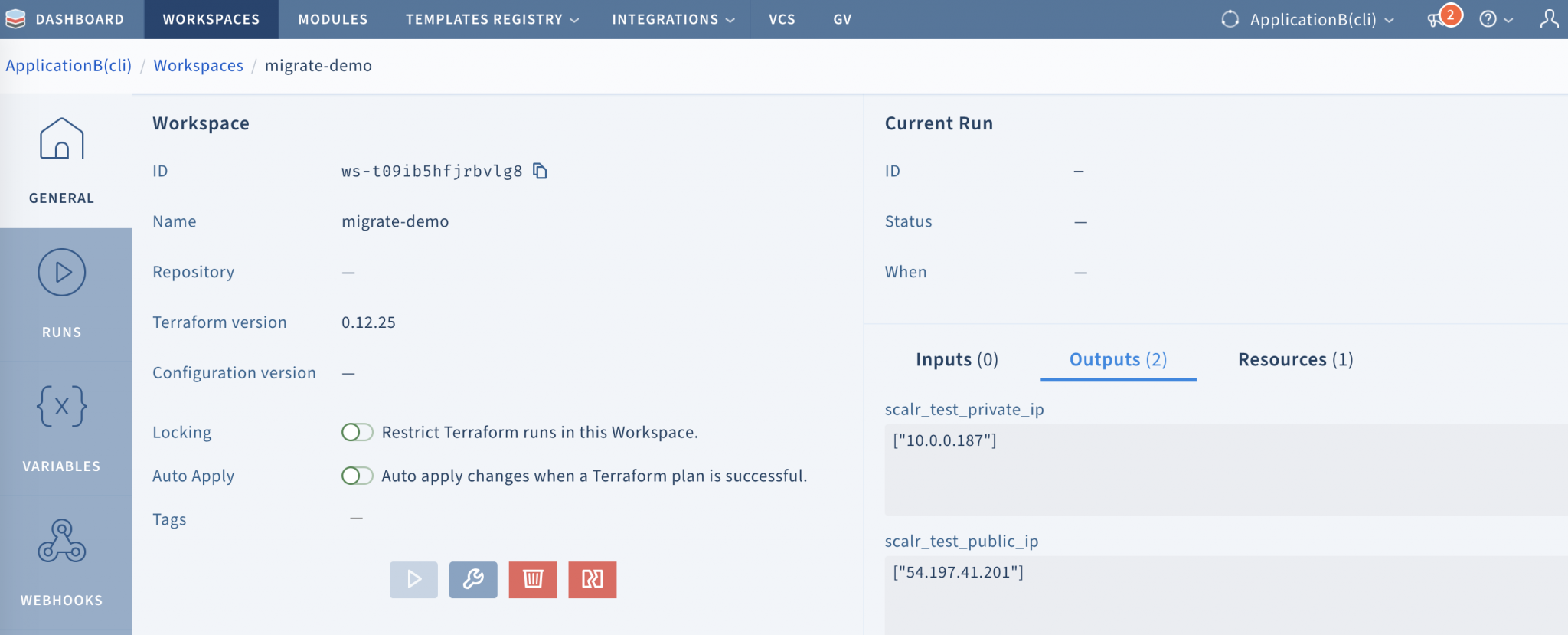
In the Scalr UI you can see the workspace and the state outputs.
Coming from Terraform Cloud? There's a separate walkthrough for migrating from Terraform Cloud to Scalr.
To try it yourself, sign up for Scalr. The docs cover the migration in more detail.
Frequently asked questions
How do I migrate Terraform state into Scalr?
Point your terraform block at Scalr as a remote backend, using your account hostname (for example my-account.scalr.io), your Scalr environment name as the organization, and a workspace name. Then run terraform init and answer yes when Terraform asks to copy the existing state. That creates the workspace and uploads the state to Scalr.
Can I migrate Terraform state from an S3 bucket to Scalr?
Yes. When you change the backend configuration from s3 to remote and run terraform init, Terraform detects the backend type changed, finds the pre-existing state, and prompts you to copy it to the new backend. Answering yes moves the state into Scalr.
How do I move local Terraform state to a remote backend like Scalr?
If your state is local, add a complete terraform block with a remote backend pointing at Scalr, then run terraform init. The Terraform CLI picks up the configuration change and migrates the state for you. If you're already on a remote backend, you only need to update the existing terraform block.
About the author

director of platform engineering at Scalr
Ryan Fee is the director of platform engineering at Scalr, with over 15 years of experience improving infrastructure experiences at companies large and small.
Part of this guide
19 sheets
Terraform State & Backends: The Complete Guide
- How to Update State in a Remote Backend
- HashiCorp GPG Key Expired: Fixing Terraform Download Errors
- Terraform State Files Best Practices
- Using the AWS S3 Backend Block in Terraform
- Using the AzureRM Backend Block in Terraform
- Using the GCS Backend Block in Terraform
- Dynamic Backend Blocks with OpenTofu
- How to Share Terraform State
- Scalr Terraform State Management: Features and Functionality
- A beginner's guide to the terraform init command
- Understanding OpenTofu Remote Backends
- Updating Terraform State, with Great Power comes Great Responsibility
- Why Use A Remote Operations Backend Over A Standard Backend
- How To Use Terraform Remote Backends
- Get Started With Scalr & Terraform CLI on AWS
- Get Started With Scalr & Terraform CLI on Azure
- Get Started With Scalr & Terraform CLI on GCP