

Article
How To Manage Scalr RBAC At Scale Using The Scalr Provider
Learn how to control and manage Scalr IAM in code with the Scalr Terraform provider.

Key takeaways
- Scalr RBAC is managed in code with the Scalr Terraform provider, defining roles, teams, and access policies to scale identity and access management.
- Three objects drive Scalr RBAC: roles (permissions), users or teams, and access policies that link a team to a role at a defined scope.
- Every team must hold at least the account-min-access role at the account scope, then receive additional roles scoped to the environments where they create runs.
- Automating RBAC supports vending pre-configured Scalr environments so onboarded teams can focus solely on their Terraform deployments.
This post is the implementation companion to the pillar guide on role-based access control for self-service infrastructure. That guide covers the concepts: platform RBAC versus cloud IAM, the account, environment, and workspace scopes, and how granular roles let a platform team onboard developers of any skill level. Here we put those concepts into code. Scalr allows custom roles and access policies at every scope in the product, which makes the RBAC model flexible. That flexibility only helps if you manage RBAC in a way that scales, which means automating it with the Scalr provider.
Automating RBAC is one step in a larger effort to "vend" Scalr environments, which is a best practice when onboarding new applications and teams. Typically you build a Scalr module that creates teams and associates a role with each team. The module then creates an environment and links provider credentials, policies, teams, variables, and modules to it. A team can then log into a pre-configured environment and focus on their Terraform deployments. (If you already have a vending machine for your cloud accounts and subscriptions, you can extend it to Scalr as well.) The rest of this post walks through the technical detail of automating Scalr RBAC.
You'll manage three objects:
- Roles - The permissions a team or user has.
- Users/Teams - The users or teams who have access to Scalr.
- Access Policies - The object that links a team to a role and defines the scope at which the linking happens.
In this tutorial, we'll use the Scalr provider to assign a team with a custom role to an environment. We'll walk through each piece of code first so you can see how it's used. Near the bottom of the post you'll find the end result: a single main.tf with all of the code in it.
First, set up the provider in a providers.tf. Get the provider information from https://registry.scalr.io/:
terraform {
  required_providers {
      scalr = {
          source = "registry.scalr.io/scalr/scalr"
          version= "1.0.0-rc32"
      }
  }
}
Now start on main.tf. First, add a local to define the account:
##Define your account and environment ID##
locals {
  account_id  = "<your-account-id>"
}
Next add some data sources to pull IDs:
data "scalr_environment" "example" {
  name = "Research-Development"
  account_id = local.account_id
}

data "scalr_role" "example" {
  name = "account-min-access"
}
Next, create the predefined roles that teams will be assigned. Most of the time, roles are created upfront and modified as needed; they don't change often. Here we'll create one role for application teams who only need to create Terraform runs.
resource "scalr_role" "planner" {
  name         = "Plan Creation"
  account_id = local.account_id
  description = "Ability to create Terraform runs, but not approve"

  permissions = [
    "accounts:read",
    "environments:read",
    "runs:cancel",
    "runs:create",
    "workspaces:read",
    "workspaces:set-schedule",
    "workspaces:update"
  ]
}
Next, add a team. Normally you'd use Terraform variables so the code can be reused, but here we'll hardcode values and use locals for the account/environment ID. The full code with the locals defined is further down:
resource "scalr_iam_team" "example" {
  name        = "myfirstscalrteam"
  description = "Scalr Example Team"
  account_id  = local.account_id
}
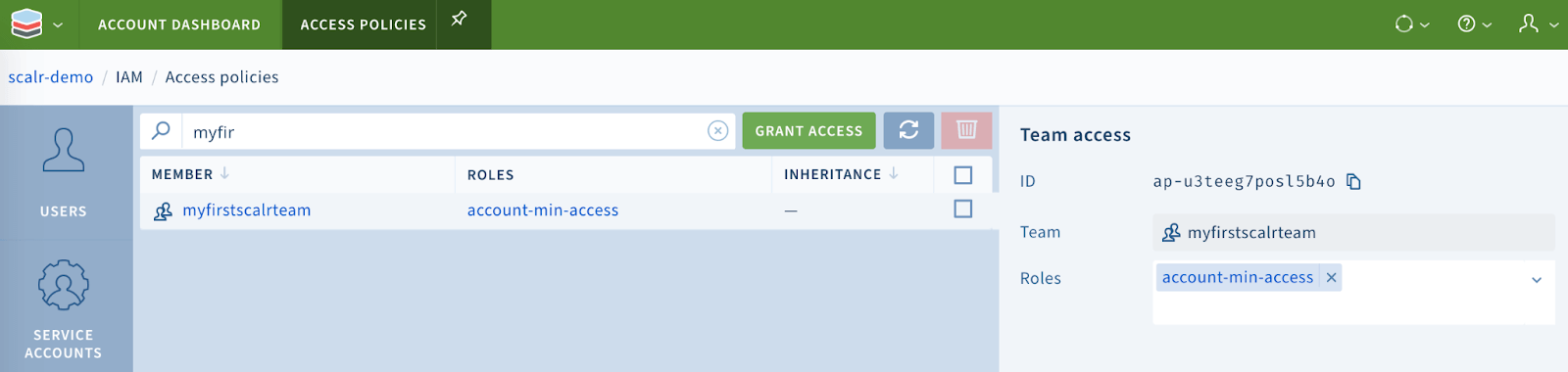
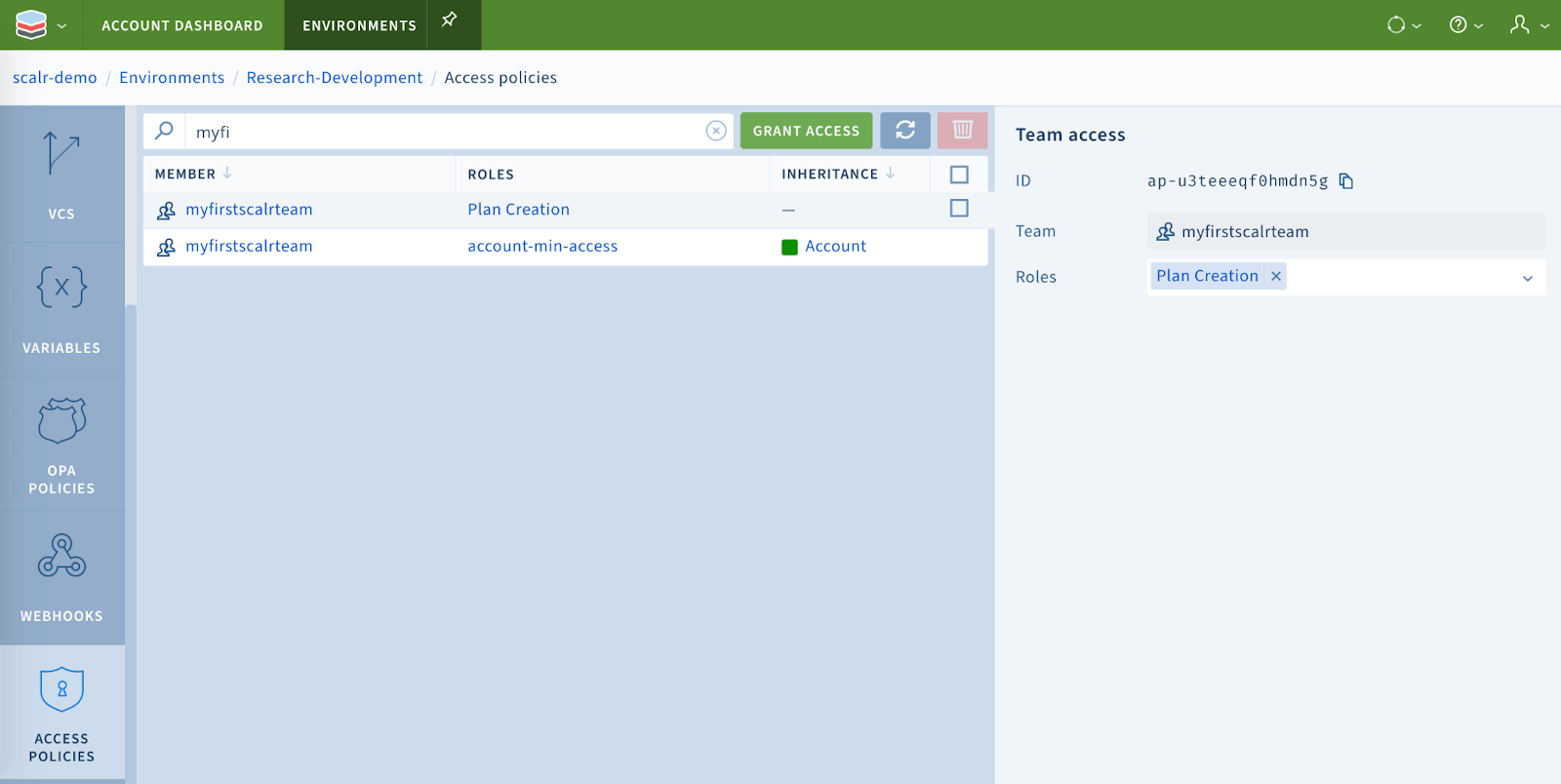
Lastly, we need to create an access policy to attach the role to a team and link the team to a scope in Scalr. All teams must have at least the 'account-min-access' role at the account scope to have access to Scalr, and then they can be added to the environment in which they will create runs:
##Link to the account first with minimal access##
resource "scalr_access_policy" "team_min_access_to_acc_scope" {
  subject {
    type = "team"
    id = scalr_iam_team.example.id
  }
  scope {
    type = "account"
    id = local.account_id
  }

  role_ids = [
    data.scalr_role.example.id
  ]
}

##Link to an environment with role created earlier##
resource "scalr_access_policy" "team_access_to_env_scope" {
   subject {
     type = "team"
     id = scalr_iam_team.example.id
   }
   scope {
     type = "environment"
     id = data.scalr_environment.example.id
   }

   role_ids = [
     scalr_role.planner.id
   ]
}
All together, this looks like:
##Define your account ID##
locals {
  account_id  = "acc-sscctbisjkl35b8"
}

data "scalr_environment" "example" {
  name = "Research-Development"
  account_id = local.account_id
}

data "scalr_role" "example" {
  name = "account-min-access"
}

resource "scalr_role" "planner" {
  name         = "Plan Creation"
  account_id = local.account_id
  description = "Ability to create Terraform runs, but not approve"

  permissions = [
    "accounts:read",
    "environments:read",
    "runs:cancel",
    "runs:create",
    "workspaces:read",
    "workspaces:set-schedule",
    "workspaces:update"
  ]
}

resource "scalr_iam_team" "example" {
  name        = "myfirstscalrteam"
  description = "Scalr Example Team"
  ##Add your own account ID##
  account_id  = local.account_id
}

##Link to the account first with minimal access##
resource "scalr_access_policy" "team_min_access_to_acc_scope" {
  subject {
    type = "team"
    id = scalr_iam_team.example.id
  }
  scope {
    type = "account"
    id = local.account_id
  }

  role_ids = [
    data.scalr_role.example.id
  ]
}

##Link to an environment with role created earlier##
resource "scalr_access_policy" "team_access_to_env_scope" {
  subject {
    type = "team"
    id = scalr_iam_team.example.id
  }
  scope {
    type = "environment"
    id = data.scalr_environment.example.id
  }

  role_ids = [
    scalr_role.planner.id
  ]
}
To execute this, you have a couple of options:
- Add the code to a VCS repository and link to a Scalr workspace that is VCS driven.
- Use the Terraform CLI and add Scalr as the remote backend.
- Module driven workspaces to help standardize onboarding.
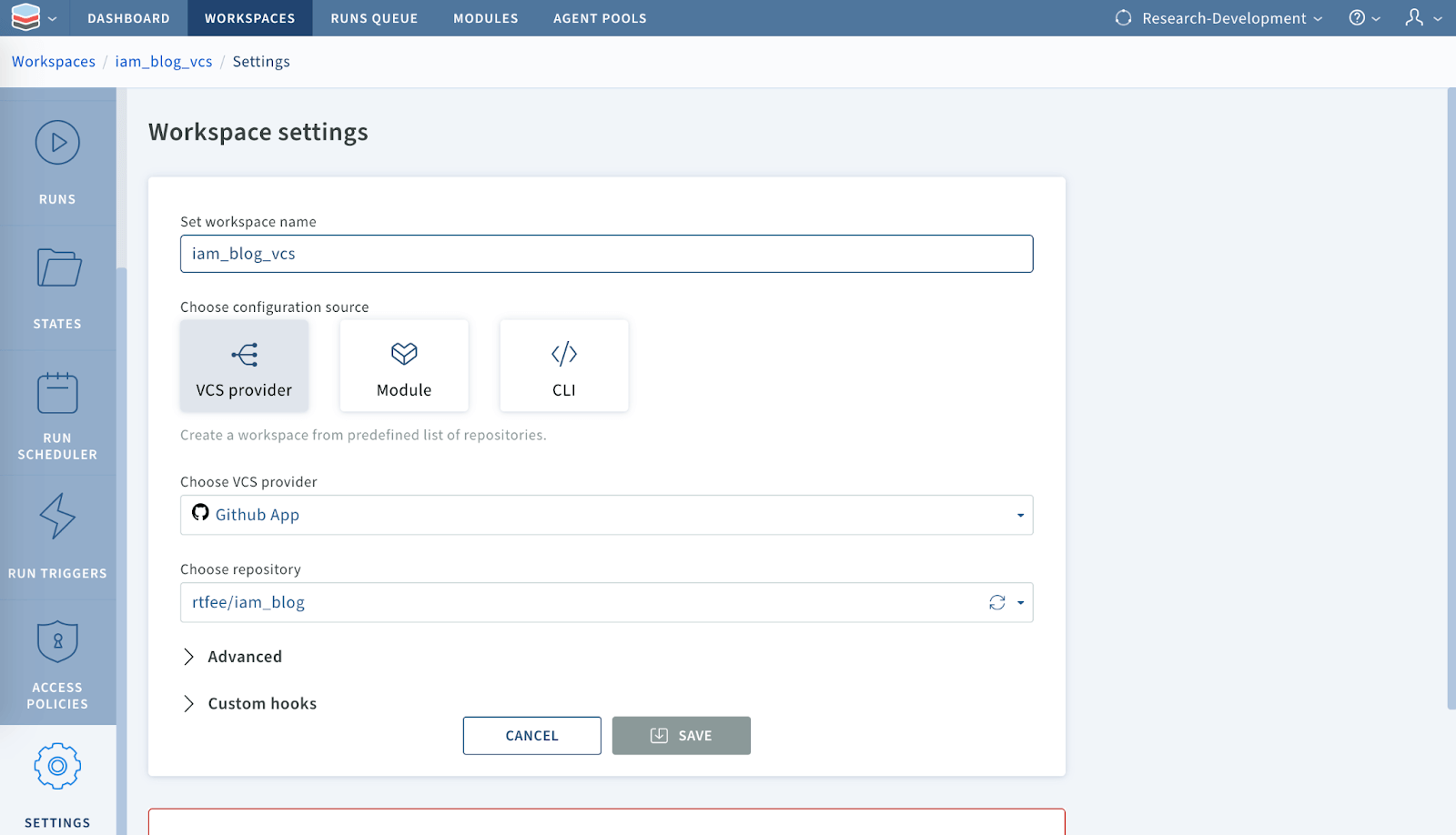
I'm choosing to use a VCS backed workspace:
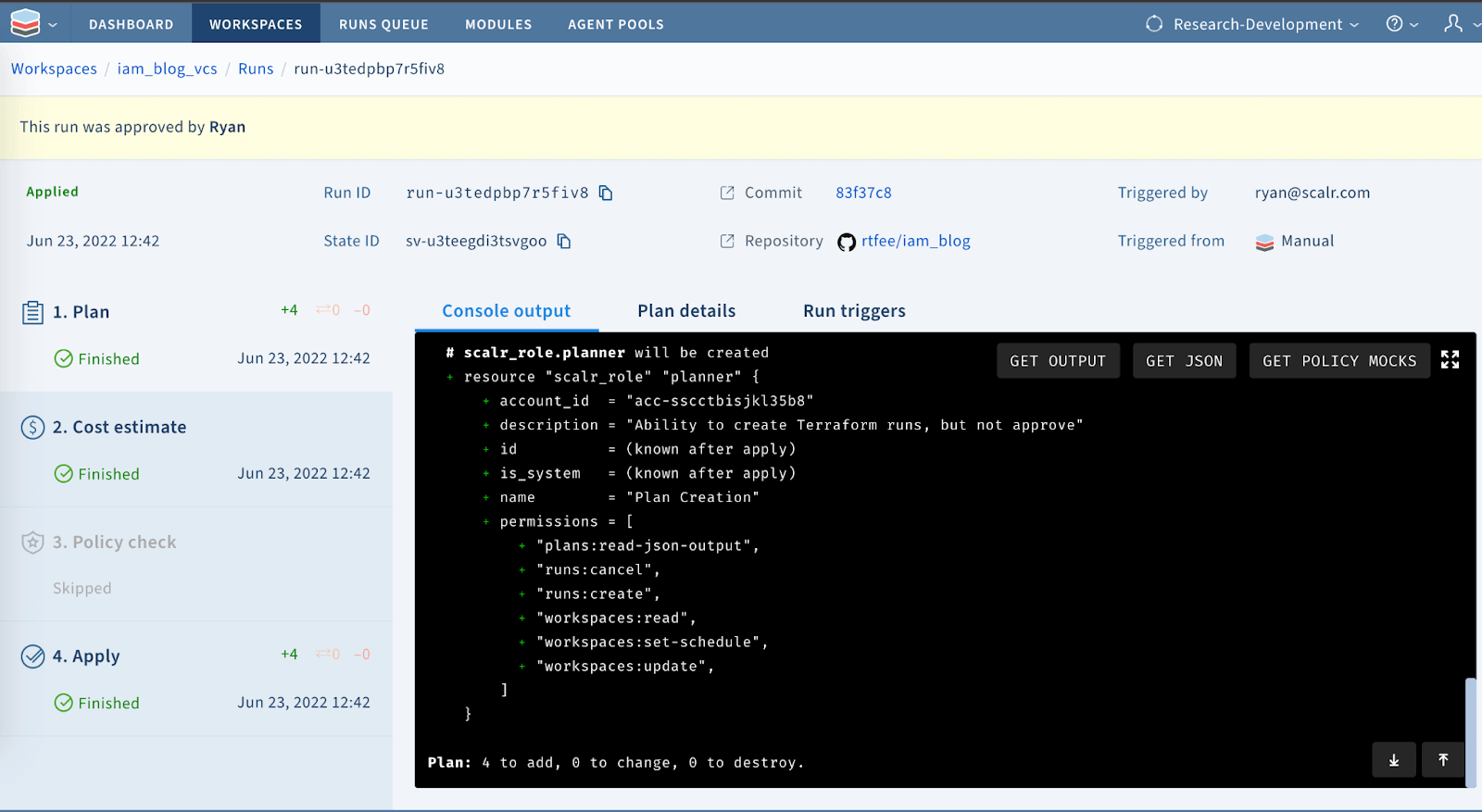
After the run, the four resources exist:
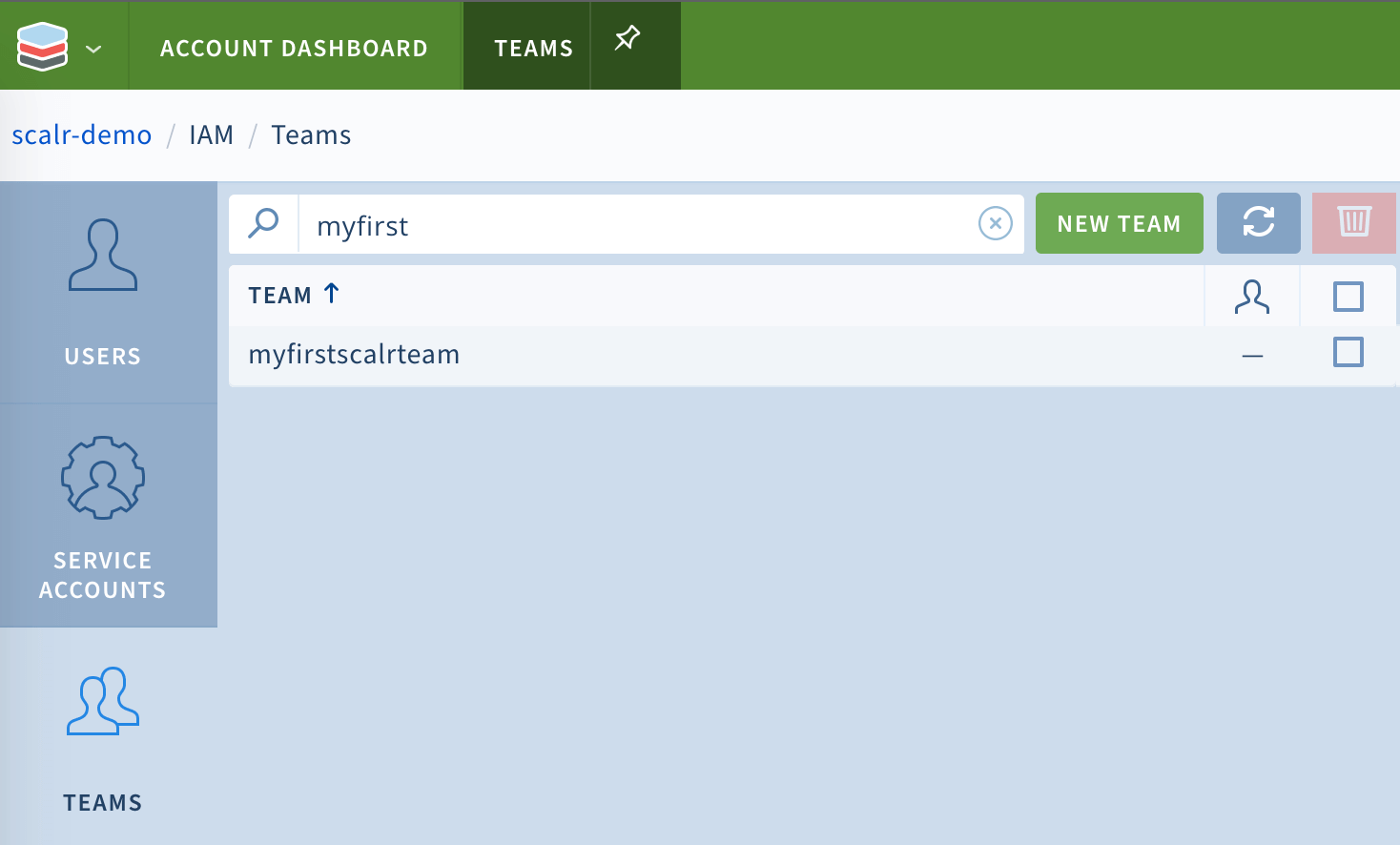
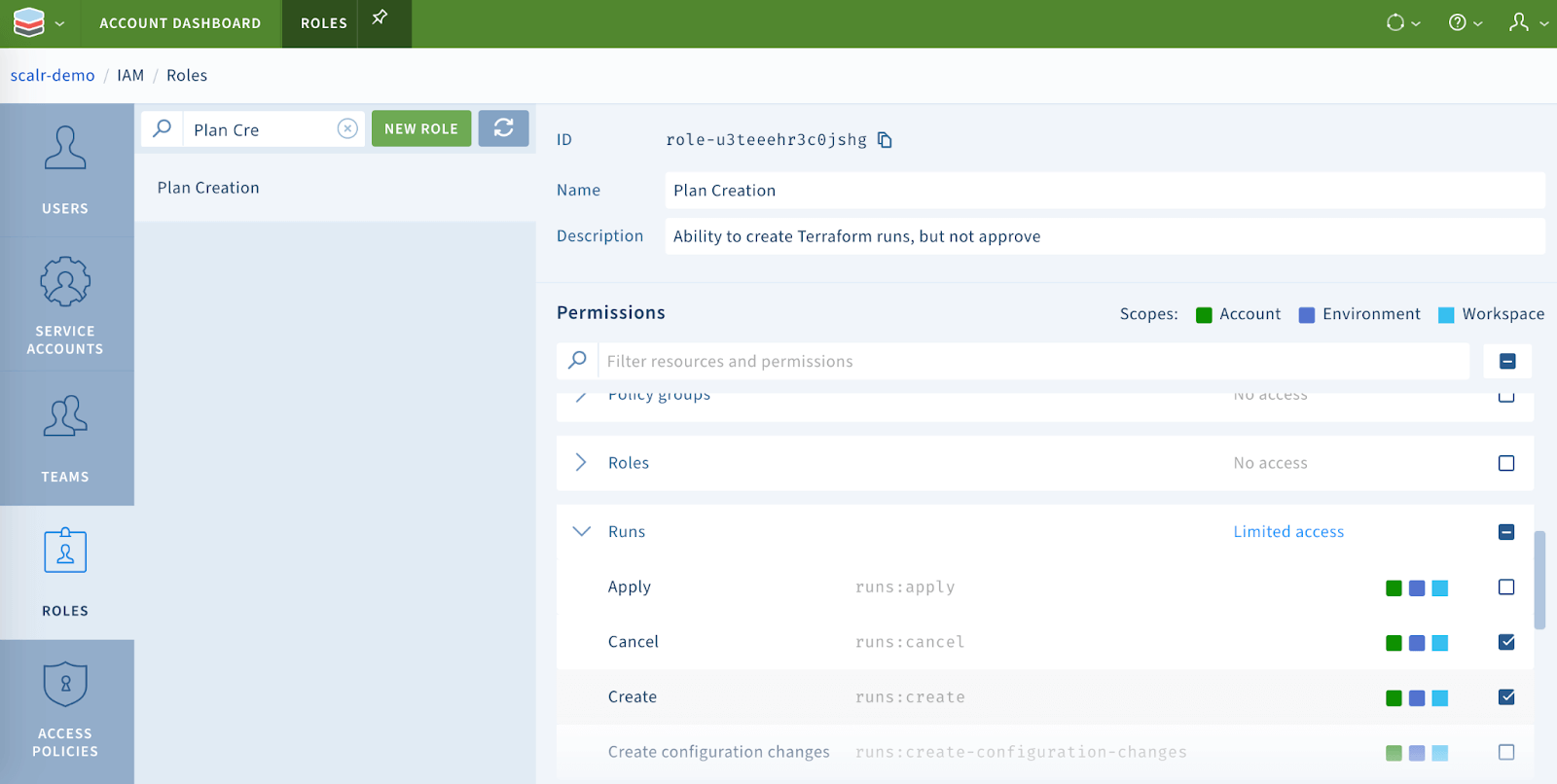
You can verify this by looking at each object in the account scope:
Team creation:
Role creation:
Account scope access policy:
Environment scope access policy:
What's next
With the basics of managing Scalr IAM through the Scalr provider in place, here are a few ways to extend it:
- Separate out the role resource into its own module. You probably won't create a new role every time a team onboards; reuse common roles instead. We kept it in the same main.tf code for example purposes in this blog.
- Use this code as a starting point for a module and use variable files to make the code reusable.
- Incorporate this into a vending machine. As teams onboard into Scalr they usually get their own environment. Add code that creates the environments and links objects (teams, policies, variables, and more) to them, so onboarding is fully automated.
Frequently asked questions
How do you automate Scalr RBAC with Terraform?
You manage it in code with the Scalr Terraform provider. Define scalr_role resources for permissions, scalr_iam_team resources for teams, and scalr_access_policy resources that link a team to a role at a given scope. The code can run from a VCS-driven workspace, the Terraform CLI with Scalr as the remote backend, or a module-driven workspace.
What objects make up the Scalr RBAC model?
Three objects: roles, which hold the permissions; users or teams, who get access to Scalr; and access policies, which link a team to a role and define the scope where that link applies. Access policies are what tie the model together.
What is the minimum role a team needs to access Scalr?
Every team must hold at least the account-min-access role at the account scope to have access to Scalr. From there you attach additional roles scoped to the environments where the team will create runs, such as a custom role that allows creating Terraform runs without approving them.
What does it mean to vend Scalr environments?
Vending means using a Terraform module to create a fully pre-configured Scalr environment for each new team or application. The module creates teams, assigns roles, creates the environment, and links provider credentials, policies, variables, and modules to it. Teams then log into a ready-to-use environment and focus on their Terraform deployments.
About the author

director of platform engineering at Scalr
Ryan Fee is the director of platform engineering at Scalr, with over 15 years of experience improving infrastructure experiences at companies large and small.