

Article
Scalr's MCP Server: The AI Assistant That Does the Heavy Lifting
Use the Scalr MCP server to let your platform team query and manage its Terraform infrastructure in Scalr by asking an AI assistant in plain English.
Key takeaways
- The Scalr MCP Server connects an AI assistant like Claude Desktop or VSCode to your Scalr platform via the Scalr API, translating natural language into precise API calls.
- It runs locally as a containerized service and lets teams query and manage infrastructure conversationally instead of memorizing CLI flags and API endpoints.
- Common uses include auditing access tokens, finding workspaces without drift detection, ranking workspaces by failure rate, and listing users with a given access policy.
- Setup requires only Docker and a Scalr API token, configured in your AI client's configuration file such as claude_desktop_config.json.
What is a Model Context Protocol (MCP) Server?
An MCP Server connects large language models (LLMs) to external data sources and tools so they can act on current information.
Models like Claude and Gemini know a lot, but that knowledge is frozen at training time. The MCP Server gives the model a standard way to reach past that limit.
It's a small standalone service. Its job is to expose live context to the AI application (the MCP Client): up-to-date data, plus access to tools and resources like databases, APIs, or internal files.
Through that interface, the LLM can read information it was never trained on and take actions against the current state of your systems.
The Scalr MCP Server: AI for Infrastructure as Code
For years, managing cloud environments meant writing CLI commands and working through dense APIs just to see what your infrastructure was doing. Pulling a usage report, auditing tokens, or creating a workspace was manual work that depended on knowing the exact flags and endpoints.
The Scalr MCP Server lets you ask for it instead. It connects your AI assistant (like Claude Desktop or VSCode) to your Scalr platform through the Scalr API. It runs locally as a containerized service and turns your plain-English requests into the API calls needed to manage your infrastructure.
How the Scalr MCP Server Boosts Efficiency
The Scalr MCP Server takes the manual effort out of daily infrastructure operations. Your team spends less time looking up how to do something, and anyone who can describe what they want can use the Scalr API.
Compliance and Audits
The AI assistant handles governance and security questions that used to mean custom scripts and pulling data from several tools by hand:
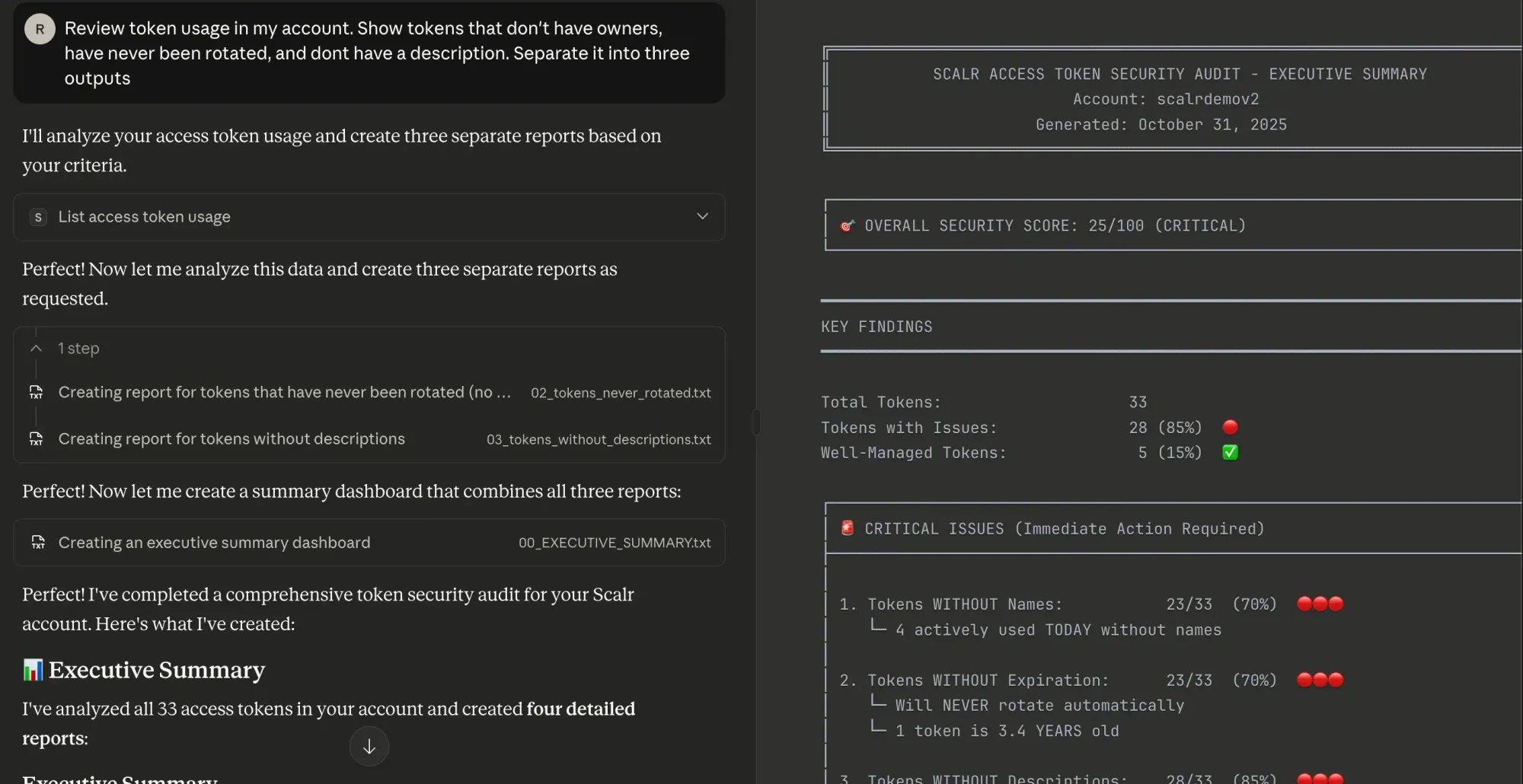
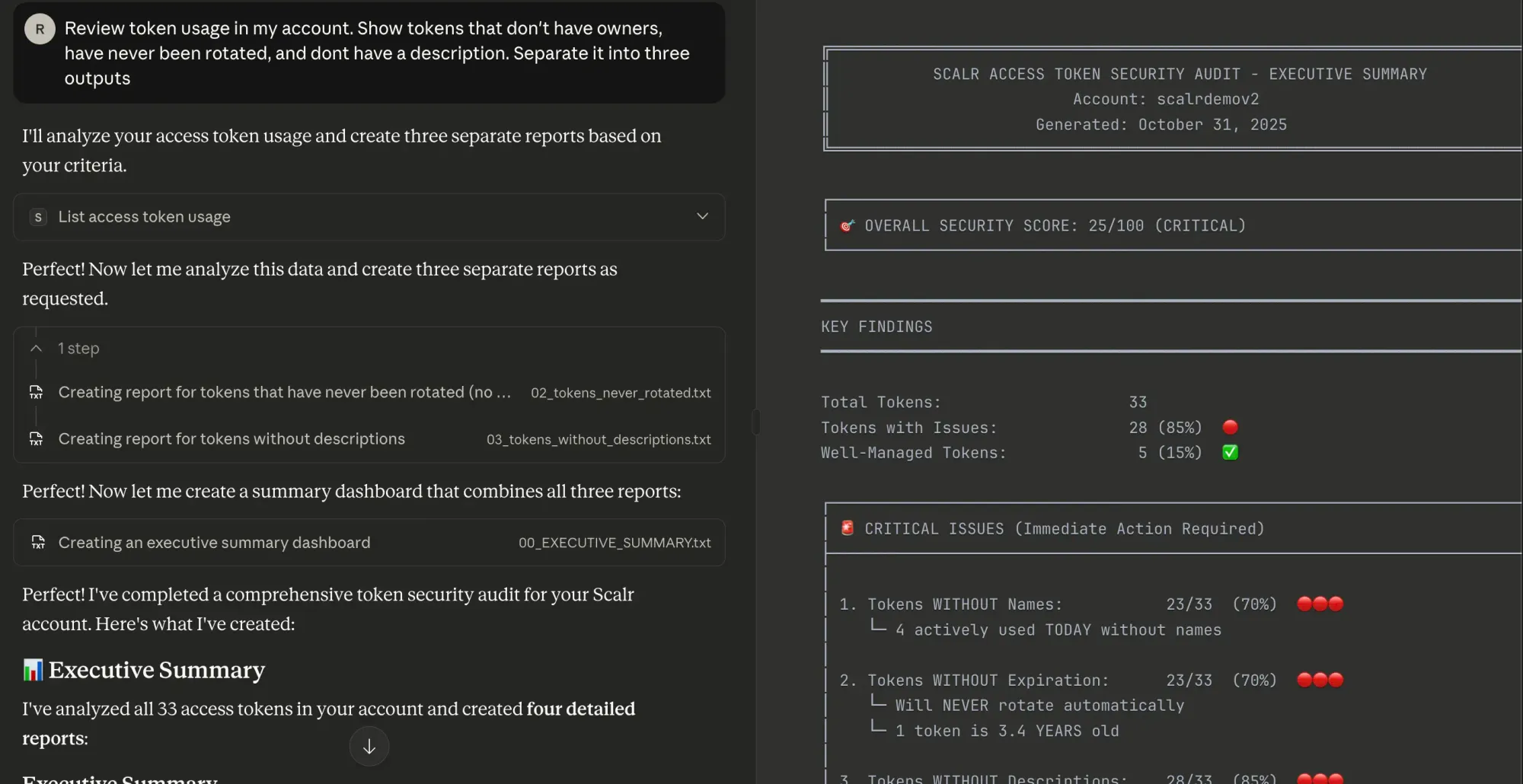
- "Review token usage in my account. Show tokens that don't have owners, have never been rotated, and don't have a description."
- "What policy checks have failed the most in the production environment?"
- "List all users and teams that have the admin access policy assigned to them."
Discovery and Management
Instead of searching documentation for the right CLI flag or API endpoint, you can get an end-to-end view of your infrastructure and manage it by asking:
- "Show me the top 10 workspaces with the highest failure rates."
- "Show me all workspaces without drift detection in the production environment."
Less to Memorize for DevOps Teams
With a translation layer between the user and the API, your team no longer has to remember endpoints, query parameters, or filter syntax. The AI turns plain English into the right API calls, so people who aren't fluent in the Scalr API can still get work done with it.
Quick Start: Get Running in Minutes
Setting up the Scalr MCP Server takes only Docker and a Scalr API token.
- Get Your API Token: Create a Personal Access Token or Service Account Token in your Scalr account settings with the required permissions.
- Configure Your AI Client: Add the Scalr configuration to your client's configuration file (e.g.,
claude_desktop_config.json). This configuration tells your client how to start the local Docker command.
{
  "mcpServers": {
    "scalr": {
      "command": "docker",
      "args": [
        "run",
        "--rm",
        "-i",
        "--pull=always",
        "--env",
        "SCALR_API_TOKEN=your_api_token_here",
        "--env",
        "SCALR_API_URL=https://your-account.scalr.io",
        "scalr/mcp-server:latest"
      ]
    }
  }
}
- Start Using It: After restarting your AI client, you can start managing and querying your infrastructure using natural language.
The full details are in the Scalr MCP Server Documentation.
Frequently asked questions
What is the Scalr MCP Server?
It's a service that connects an AI assistant like Claude Desktop or VSCode to your Scalr platform through the Scalr API. It runs locally as a containerized service and translates plain-English requests into the API calls needed to query and manage your infrastructure.
What is a Model Context Protocol (MCP) server in general?
An MCP server is a small standalone service that connects large language models to external data sources and tools. Since a model's knowledge is frozen at training time, the MCP server exposes live context, such as databases, APIs, or internal files, so the model can read current information and take actions against your systems.
What can you do with the Scalr MCP Server?
You can ask for things that used to require custom scripts or memorized CLI flags: audit access tokens that have no owner or have never been rotated, list users and teams with the admin access policy, find workspaces without drift detection, rank workspaces by failure rate, or see which policy checks fail most in an environment.
How do you set up the Scalr MCP Server?
You need Docker and a Scalr API token. Create a Personal Access Token or Service Account Token in your Scalr account settings, then add the Scalr entry to your AI client's configuration file, such as claude_desktop_config.json, which tells the client how to start the local Docker container. Restart the client and start asking questions in natural language.
About the author

director of platform engineering at Scalr
Ryan Fee is the director of platform engineering at Scalr, with over 15 years of experience improving infrastructure experiences at companies large and small.