

Article
Terraform State Storage: How to Bring Your Own S3, GCS, or Azure Bucket
Scalr Storage Profiles let you redirect Terraform state files and plan artifacts to your own AWS S3, GCP, or Azure bucket, and can also receive audit log exports once you configure them, giving you data residency control without sacrificing remote execution.
Terraform state files contain a detailed map of your infrastructure such as resource IDs, IP addresses, connection strings, and any outputs from your modules. When your Terraform runs are remote, that state is stored somewhere, which raises the question of whose storage it is.
With most remote execution platforms, the answer is the vendor's. You don't choose the bucket, the region, or the encryption key. For teams with data residency requirements, SOC 2 commitments, or internal policies requiring that infrastructure data stay in company-controlled storage, that's a problem.
Scalr Storage Profiles solve this by letting you redirect all Terraform and OpenTofu storage to a bucket you control in AWS S3, GCP Cloud Storage, or Azure Blob without giving up remote execution, plan history, drift detection, or any other platform feature.
What Storage Profiles Cover
A storage profile in Scalr redirects four categories of data to your bucket:
- State files: Terraform and OpenTofu state, versioned, stored per workspace
- Configuration versions: the Terraform code uploaded for each run
- Plan artifacts: the plan JSON and plan binary (
.tfplan) from each run - Run logs: output from plan and apply operations
Storage profiles can also handle audit log export, streaming Scalr account audit events to the same bucket for centralized retention and SIEM ingestion.
A single storage profile can serve both functions, or you can configure separate profiles for run storage and audit logs.
Why This Matters
Data residency and sovereignty
GDPR and similar regulations require that data about EU residents be processed and stored in approved jurisdictions. "Data" in this context includes infrastructure configuration, and state files frequently contain output values from databases, network resources, and services that process personal data. If your Terraform state is stored in a US-based vendor bucket, you may have an exposure you haven't examined.
Storage Profiles let you point to an EU-region bucket (or any region you choose).
Compliance frameworks
SOC 2. If your SOC 2 audit scope includes infrastructure tooling, auditors will ask where your Terraform state lives and who can access it. "In a bucket managed by a third-party vendor" is a defensible answer, but it requires vendor documentation and access reviews. "In our own S3 bucket, under our own IAM policies" is a clean answer with evidence you control.
HIPAA. Infrastructure configurations that reference systems processing ePHI need to be protected under your BAA and technical safeguard documentation. Storage Profiles let you apply your existing S3 encryption, access control, and retention policies to Terraform state using controls you've already audited.
Cost and retention control
When your state is in your own bucket, you control the lifecycle rules. You can set automatic expiry on old plan artifacts (which can be large), tier infrequently accessed logs to cheaper storage classes, or apply bucket-level versioning and object lock for immutability. None of that is configurable when the vendor owns the bucket.
How Storage Profiles Work
Storage Profiles are configured at the Scalr account level under Account → Security → Storage Profiles. You can then assign a profile as the default for the entire account, or override it per environment.
The per-environment override is useful for teams with mixed residency requirements: production environments might route to an EU-region bucket, while sandbox environments use Scalr's default managed storage. Both run on the same platform without separate accounts or special configuration.
Authentication uses OIDC (federated identity) for AWS and Azure, so no long-lived credentials are stored in Scalr. GCP uses a service account key.
Setting Up a Storage Profile
AWS S3
Step 1: Create an S3 bucket
Create a bucket in the AWS region that meets your residency requirements. Enable versioning on the bucket; Scalr uses it to maintain state history.
For encryption, you can use SSE-S3, SSE-KMS with an AWS-managed key, or SSE-KMS with a customer-managed key (CMK). If you're also using Scalr BYOK, those are separate: BYOK covers Scalr's database (variables, credentials), while bucket-side encryption covers the state files in your S3 bucket.
Step 2: Configure OIDC authentication
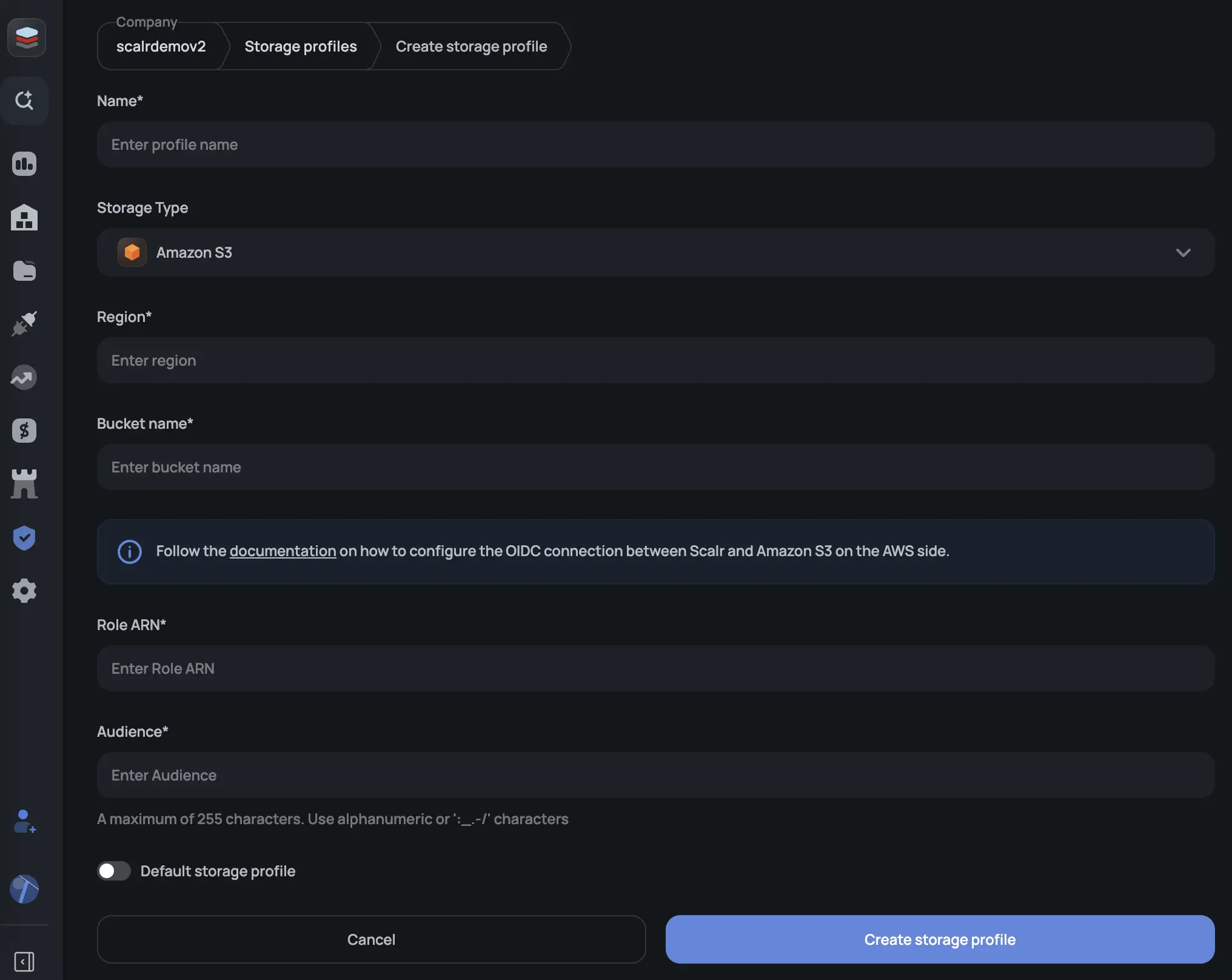
Scalr authenticates to your bucket via OIDC federated identity, so no IAM access keys are stored anywhere.
In AWS IAM, add an identity provider:
- Provider URL:
https://scalr.io - Audience: a string you define (you'll reference it in the profile config)
Step 3: Create an IAM role
Create a role that trusts the scalr.io OIDC provider. The role needs:
{
  "Effect": "Allow",
  "Action": [
    "s3:ListBucket",
    "s3:GetObject",
    "s3:PutObject",
    "s3:DeleteObject"
  ],
  "Resource": [
    "arn:aws:s3:::your-bucket-name",
    "arn:aws:s3:::your-bucket-name/*"
  ]
}
If you're using SSE-KMS, also add kms:GenerateDataKey and kms:Decrypt for your key.
Trust policy for the role:
{
  "Version": "2012-10-17",
  "Statement": [{
    "Effect": "Allow",
    "Principal": {
      "Federated": "arn:aws:iam::<your-aws-account-id>:oidc-provider/scalr.io"
    },
    "Action": "sts:AssumeRoleWithWebIdentity",
    "Condition": {
      "StringEquals": {
        "scalr.io:aud": "<your-audience>"
      },
      "StringLike": {
        "scalr.io:sub": "scalr:account:<your-scalr-account-name>"
      }
    }
  }]
}
Step 4: Create the profile in Scalr
Go to Account → Security → Storage Profiles and create a new AWS S3 profile, or use the API.
GCP Cloud Storage
Step 1: Create a GCS bucket
Create a bucket with your preferred region and storage class. Recommended settings:
- Location type: Multi-region (or a specific region for residency requirements)
- Access control: Fine-grained
- Encryption: Google-managed (or CMEK if required)
Step 2: Create a service account
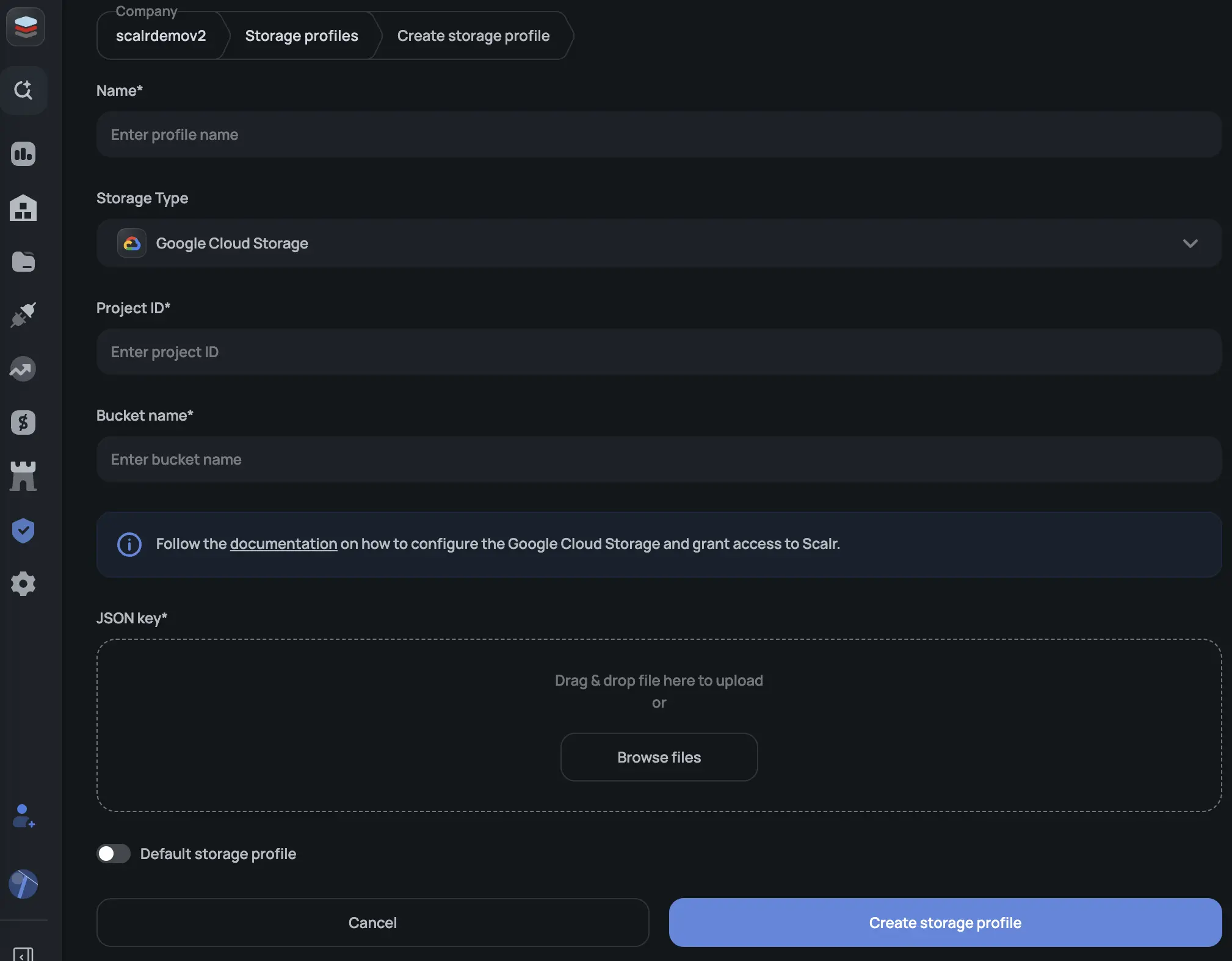
Create a GCP service account and grant it the Storage Admin role on your bucket. Download the JSON service account key.
Step 3: Create the profile in Scalr
Go to Account → Security → Storage Profiles and create a new GCP profile, or use the API.
Azure Blob Storage
Step 1: Create an Azure AD application
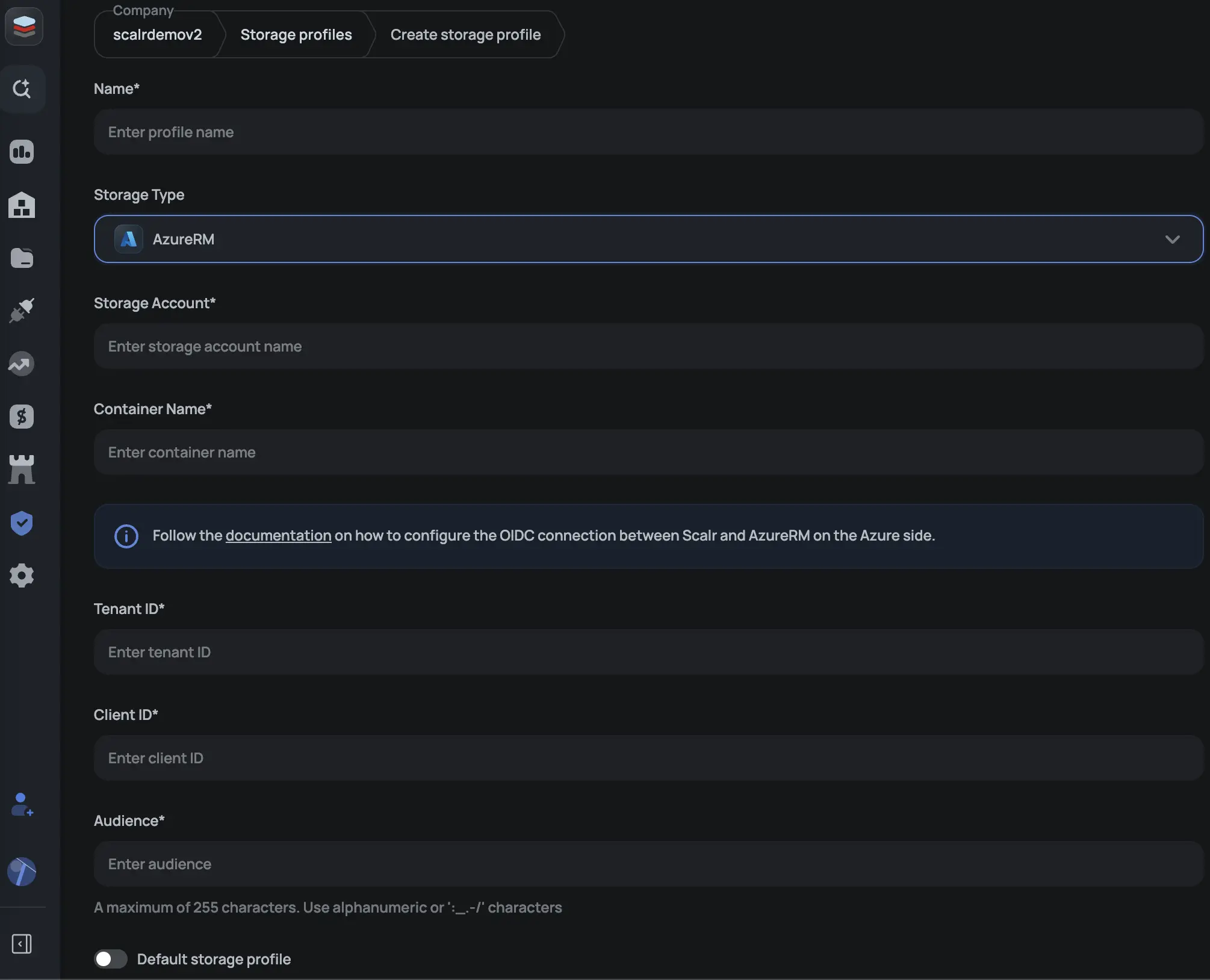
In Azure Active Directory → App registrations, create a new registration. Note the Application (client) ID and tenant ID.
Step 2: Configure federated credentials
Under the app's Certificates & secrets → Federated credentials, add a credential:
- Issuer:
https://scalr.io - Subject identifier:
scalr:account:<your-scalr-account-name> - Audience: a value you define
Step 3: Grant storage access
On your Storage Account, go to Access Control (IAM) and assign the Storage Blob Data Contributor role to your Azure AD application.
Step 4: Create the profile in Scalr
Assigning a Profile to an Environment
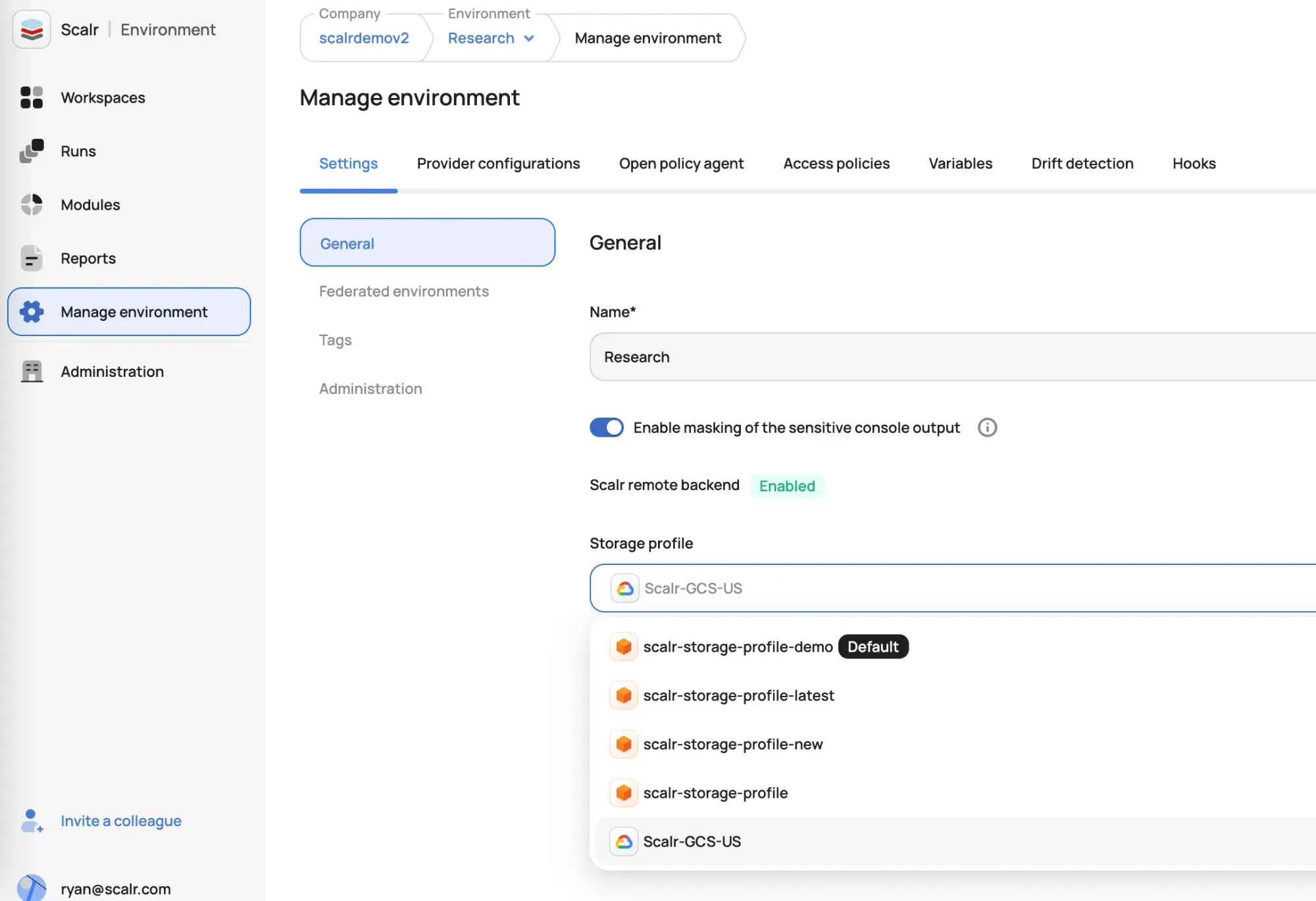
After creating a profile, you can assign it as the default for specific environments rather than the entire account. This lets you apply different storage configurations to production, staging, and sandbox environments.
In the Scalr UI, go to the environment settings and select a storage profile to use.
Managing Storage Profiles as Code
Like most Scalr configuration, storage profiles can be managed with the Scalr Terraform provider, including defining the profile and assigning it to environments:
resource "scalr_storage_profile" "eu_production" {
  name               = "eu-production-state"
  backend_type       = "aws-s3"
  aws_s3_bucket_name = "acme-terraform-state-eu"
  aws_s3_region      = "eu-west-1"
  aws_s3_role_arn    = "arn:aws:iam::123456789012:role/scalr-state-eu"
  aws_s3_audience    = "scalr-prod"
  default            = true
}

resource "scalr_environment" "production" {
  name               = "production"
  account_id         = var.scalr_account_id
  storage_profile_id = scalr_storage_profile.eu_production.id
}
We recommend this approach for teams that manage a lot of Scalr configuration: the profile definition, IAM trust policy, and environment assignment all live in VCS and go through code review.
Migrating Between Storage Profiles
Scalr handles profile migrations cleanly. When you change the default profile for an account or environment, new blob objects (new runs, new state versions) go to the new profile. Scalr keeps track of where old blobs were written and can still read them from the previous profile.
You don't need to re-import state or manually copy objects between buckets. Old runs are still accessible in the Scalr UI; old state versions are still readable by terraform state commands.
One constraint: once blobs have been written to a profile, you can only update the profile's name and credentials, not the bucket or region. If you need to change the bucket, create a new profile and update the default; old data stays accessible from the original profile.
Storage Profiles vs. HCP Terraform
HCP Terraform stores all Terraform state and run artifacts in HashiCorp-managed storage. There's no mechanism to redirect state to a customer-owned bucket while retaining remote execution; state lives in HashiCorp's infrastructure regardless of plan.
HCP Terraform does offer HYOK (Hold Your Own Key), which encrypts state using a customer-managed KMS key before storing it in HashiCorp's bucket. This gives key ownership without giving storage location control. For teams that need both, their key and their bucket, HYOK is a partial solution.
Scalr's approach separates these concerns: Storage Profiles control where data lives; BYOK (Bring Your Own Key) controls the encryption keys used for variable and credential storage in Scalr's database. Used together, they address both the storage location question and the key ownership question independently.
| HCP Terraform | Scalr | |
|---|---|---|
| Customer-controlled state storage | No | Yes (S3, GCS, Azure) |
| State encryption with customer key | HYOK (Premium) | Bucket-side encryption via your own KMS |
| Variable/credential encryption with customer key | HYOK (covers state/plan files) | BYOK (enterprise) |
| Per-environment storage config | No | Yes |
Important Limitations
A few things to know before you configure Storage Profiles:
No bucket migration after writes. Once Scalr has written blobs to a profile's bucket, you can't change the bucket or region for that profile. Create a new profile to change the destination; old blobs stay in the original location and remain accessible.
Profile deletion requires empty bucket. A storage profile can't be deleted while it has blob objects. Remove the objects first, or leave the profile in place and stop assigning it to new environments.
Audit logs are a separate setup step. Creating a storage profile doesn't automatically export audit logs to it. Follow the audit log configuration steps separately to enable cloud storage for audit events.
Getting Started
Storage Profiles are available on the Scalr enterprise plan. To get started:
- Create a bucket in your cloud provider of choice and configure access (OIDC role for AWS/Azure, service account for GCP).
- Go to Account → Security → Storage Profiles and create the profile.
- Set it as the default for your account, or assign it to specific environments.
Full setup documentation: Storage Profiles. If you're also looking to manage encryption key ownership for Scalr's metadata, see BYOK.
Questions about compliance configurations or data residency? Contact support or book a demo.
About the author

director of platform engineering at Scalr
Ryan Fee is the director of platform engineering at Scalr, with over 15 years of experience improving infrastructure experiences at companies large and small.